📚 Product Documentation
InventoryMod Documentation
A complete, plain-English guide to everything inside InventoryMod — the free warehouse & inventory management app. Learn how to manage products, run stock movements, reserve items for orders, receive purchases, reconcile physical counts, and export your data. Almost every feature below works identically on the Web App, the Chrome Extension, and the Android App (the exceptions are team work and the API, which are web-only), because all three share the same engine and database structure.
1. Getting Started
InventoryMod needs no sign-up, no credit card, and no server setup. Choose the platform that suits you:
The left-hand menu (or the bottom navigation bar on mobile) groups every screen into four areas: Catalog (products, customers, suppliers), Operations (stock, orders, purchases, reservations), Control (movements, reconciliation, reports), and System (import/export, settings). A typical first run looks like this:
- Create a warehouse (or use the default one).
- Add products manually or import a catalog from Excel/CSV.
- Post a Stock In to set your starting quantities — or import balances.
- Start tracking: create orders, receive purchases, and watch the dashboard.
2. Dashboard & Analytics
The Dashboard is your home screen. It summarises the health of your inventory at a glance so you know what needs attention today.
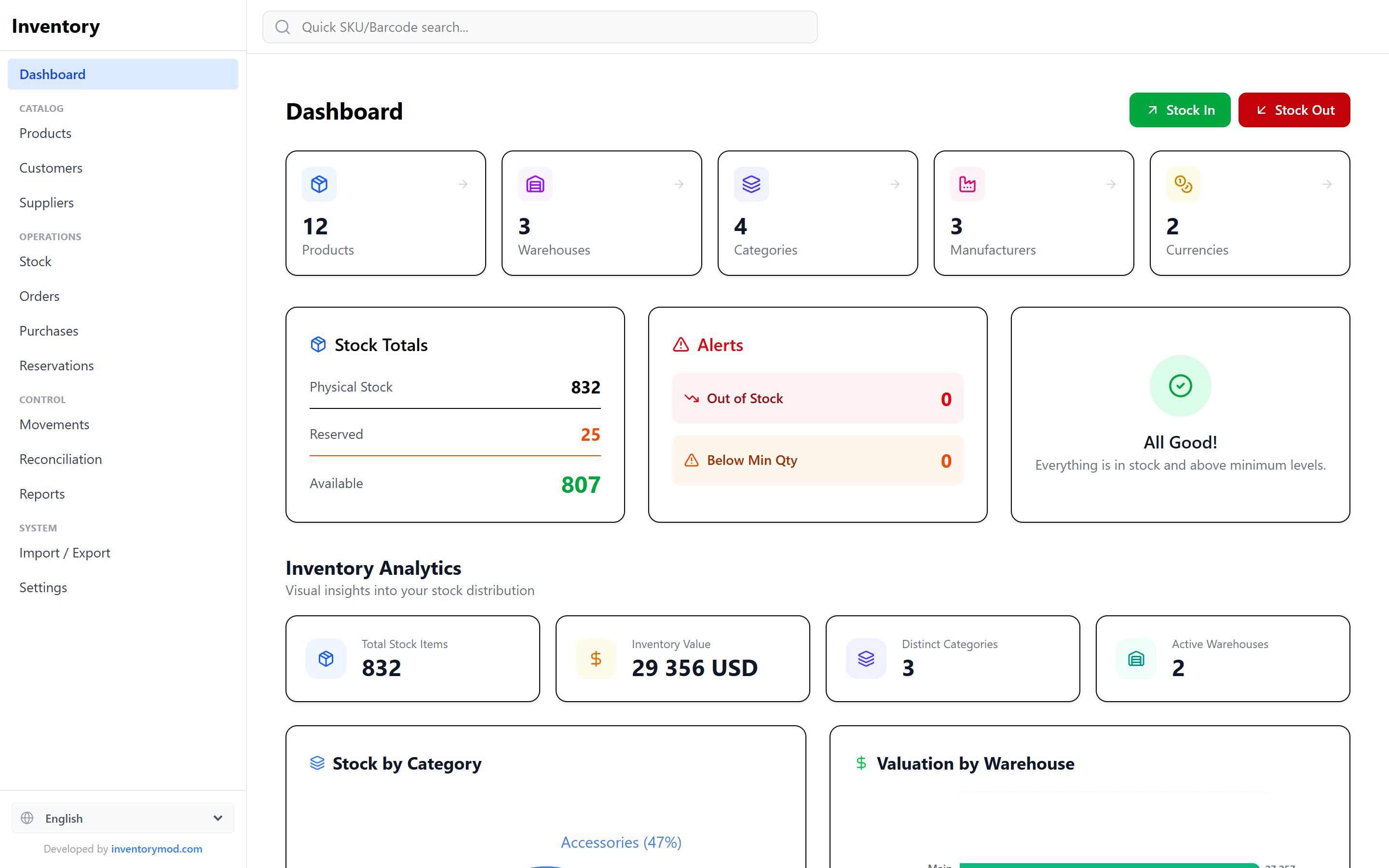
- Stock totals & physical stock — the total number of units across all warehouses.
- Stock In / Stock Out — recent inbound and outbound volume.
- Alerts — items that are Out of Stock or Below Minimum Quantity. When everything is healthy you'll see an "All Good!" state; otherwise a "Stock Review Needed" card links you straight to the Stock page.
- Recent Movements & Reservations — the latest activity, with a "View All" link.
The Inventory Analytics block gives visual insight into how stock is distributed: total stock items, total Inventory Value, distinct categories, active warehouses, plus charts for Stock by Category and Valuation by Warehouse.
3. Products & Catalog
The Products page is the master catalog of everything you sell or store. Each product supports a rich set of fields:
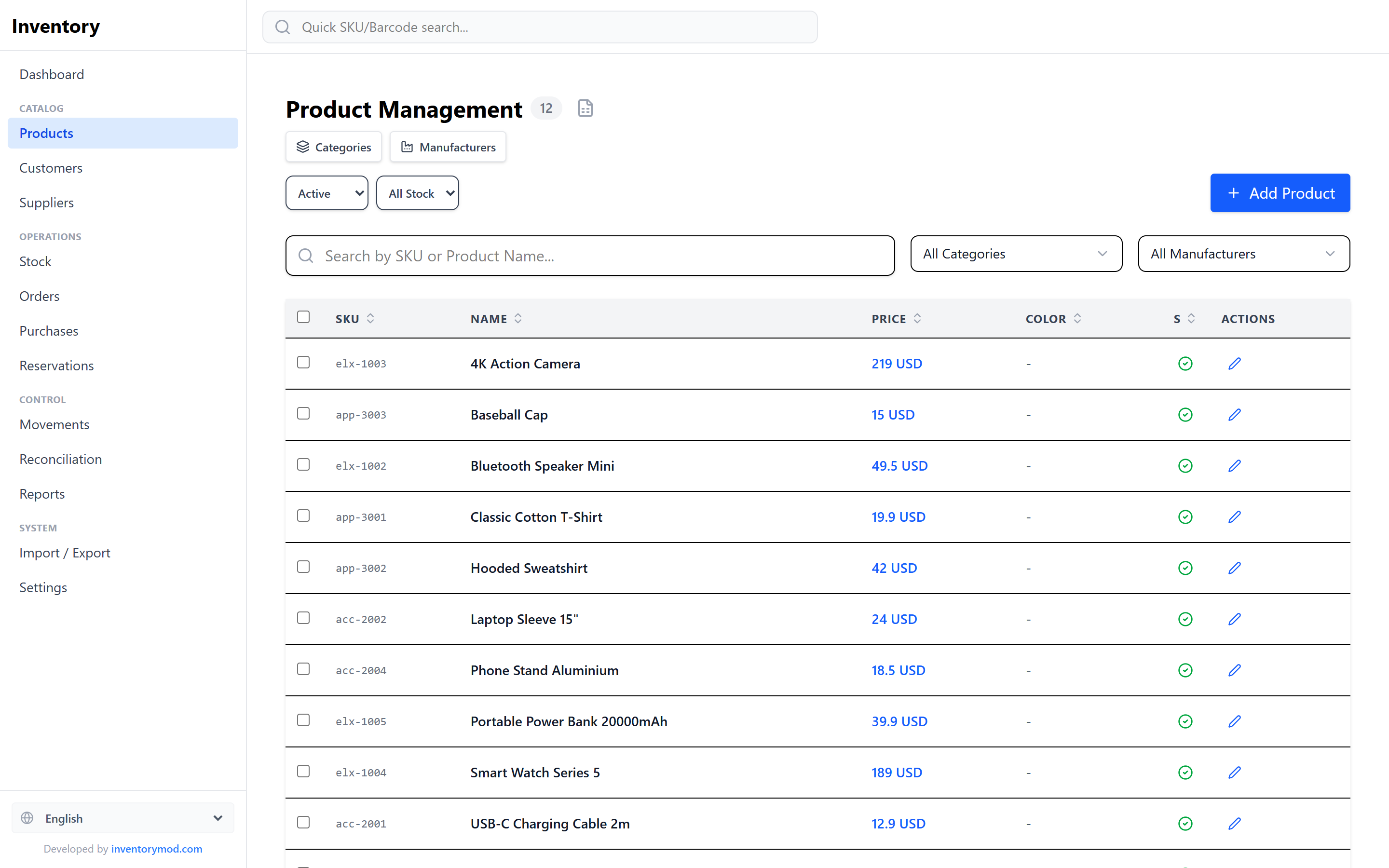
SKU, Name, Barcode, Category, Manufacturer, Price & Currency, RRP (recommended retail price), Purchase cost & purchase currency, Minimum quantity (for low-stock alerts), Product URL, Image URL, and unlimited Custom Fields (text, number, or date) that you define in Settings.
What you can do on the Products page:
- Search & filter by SKU or name, by category, by manufacturer, by status (Active / Archived), and by stock state (In Stock / Low / Out).
- Add, edit, or duplicate a product — duplicating is handy for creating variants.
- Price History — every price change is recorded with a date, so you can see how a product's price evolved.
- Bulk actions — select multiple products to bulk archive, bulk restore, or bulk-update their category/manufacturer at once.
- Export selected products or the whole catalog to CSV or XLSX.
- Archive vs. delete — archiving hides a product while keeping all its history intact (recommended). Permanent deletion is only offered when it's safe, and clearly warns you when related stock, movements, or orders would also be removed.
4. Product Variants
When one product comes in several versions — sizes, colors, materials — create a model with variants. The model holds the shared properties (name, category, default price), and each variant is a regular stock item with its own SKU, barcode, price and stock level.
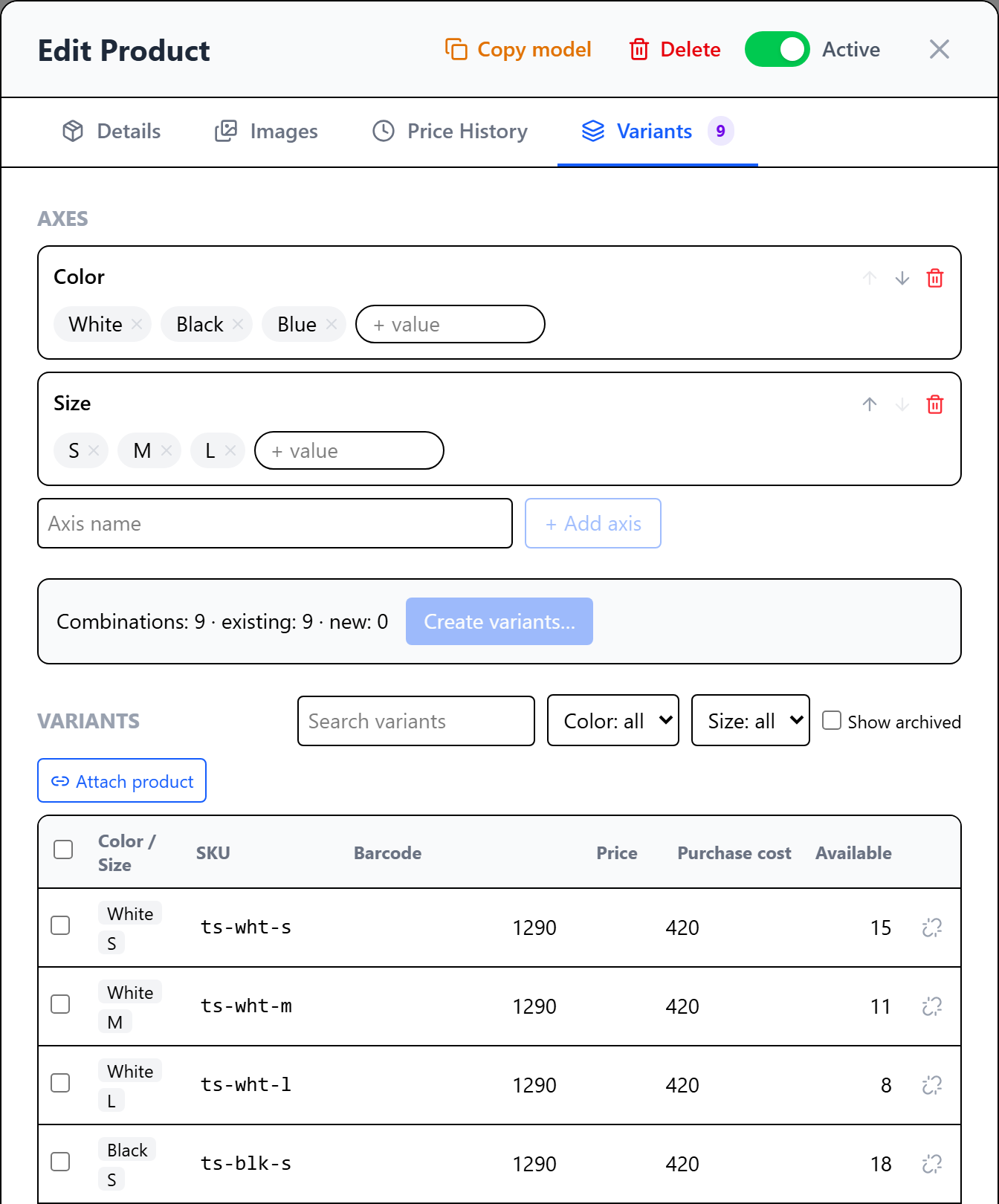
How to create variants
- Create a product and choose the type Model with variants.
- On the Variants tab, add axes — for example Color and Size — and their values. Values can be entered comma-separated: S, M, L, XL.
- Click Create variants — the app creates products for every missing combination. SKUs are generated automatically and can be changed.
- Set each variant’s price, purchase price and barcode right in the table or in the variant card.
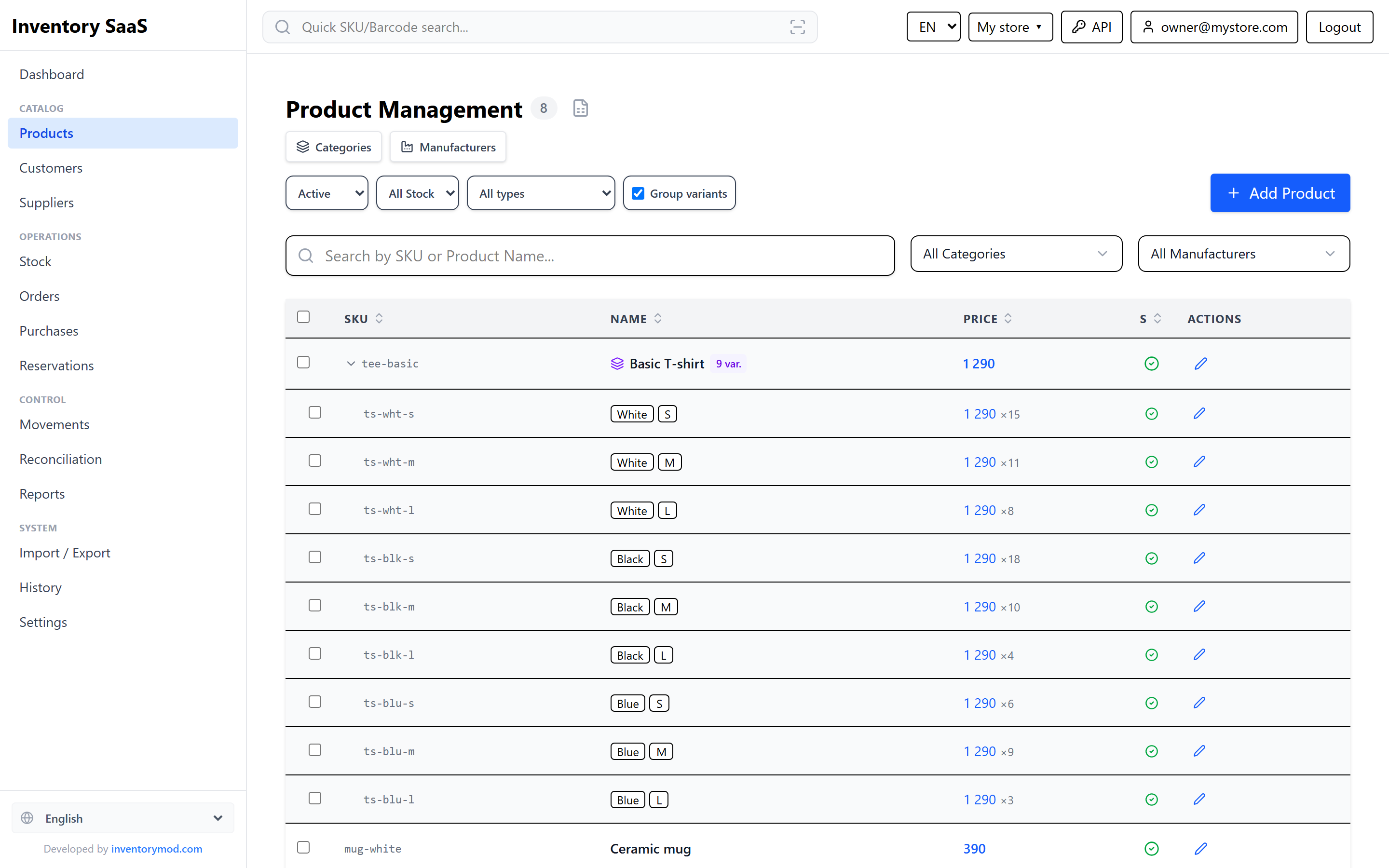
A variant’s name is built from the model name and the axis values (“Basic T-shirt — White / M”). Rename the model and the variant names update automatically; a name you set manually is kept. An existing product can be linked to a model as a variant, and a variant can be unlinked back into a regular product.
Stock, orders and reports
- Stock in, stock out, transfers, reservations and stock counts are done on variants — the model itself has no stock.
- A specific variant is added to an order; if you pick the model, the app asks you to choose a variant.
- Sales and ABC analysis can be viewed per variant or rolled up per model.
- Archiving a model archives all of its variants.
5. Kits & Assembly
InventoryMod tracks products that are made of other products. Every product has a type:
Bought and sold as is. The default type.
Built from components in your warehouse — manufacturing, kitting, furniture or equipment assembly. It has its own stock.
Sold as one item but has no stock of its own: its components are reserved and shipped in orders. Great for bundles and gift sets.
Groups the variants of one product (see Product Variants).
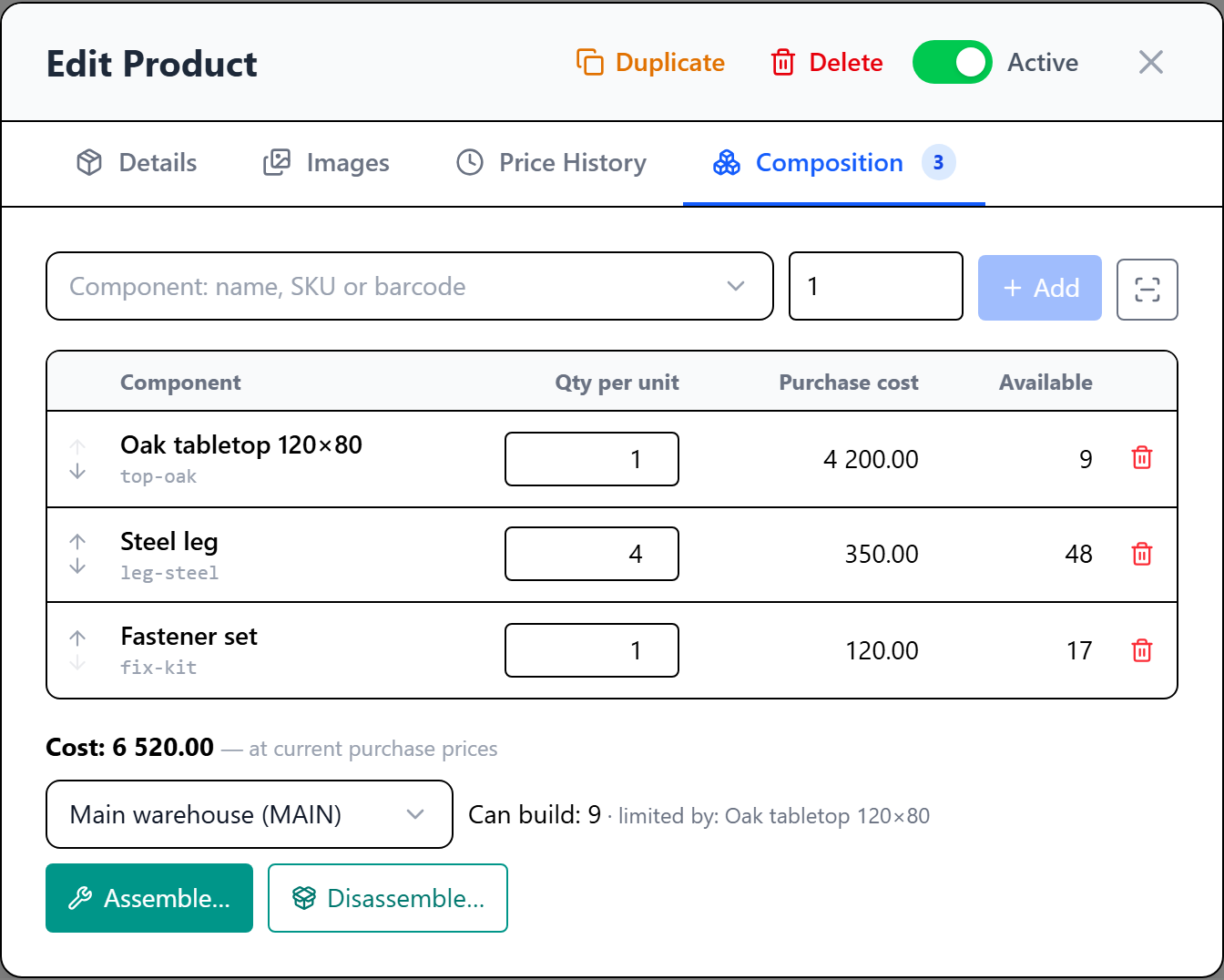
Bill of materials
On the Composition tab, add components and the quantity of each per unit (fractional quantities such as 0.25 kg are supported). The app immediately shows the product’s cost at current component purchase prices (plus a labor cost, if set) and how many units can be built from stock in the selected warehouse — and which component is the bottleneck. Find components by name or SKU, or scan a barcode.
Assembly and disassembly
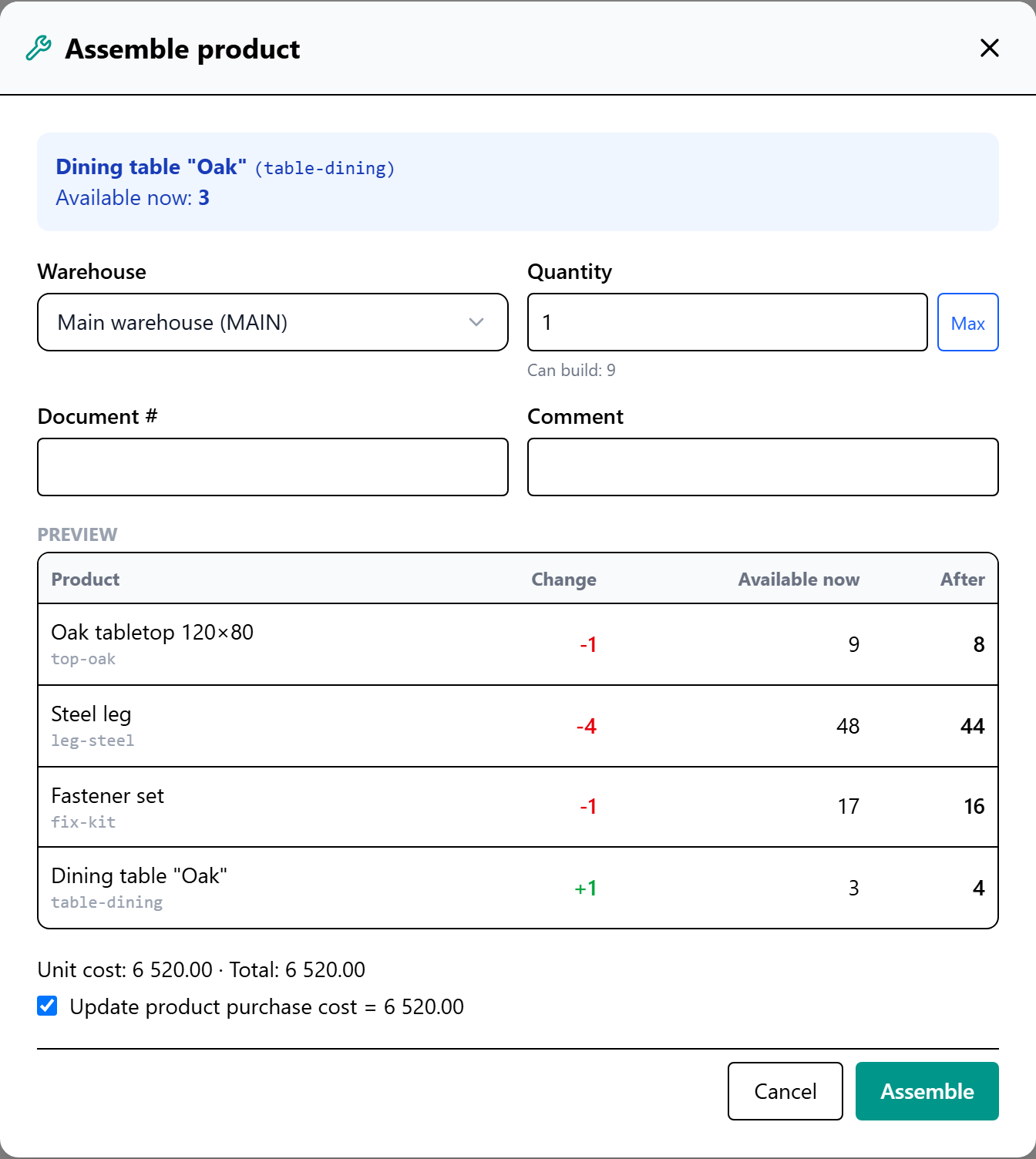
- Assembly consumes the components and receives the product into the same warehouse in a single operation. The cost of assembled units is rolled up from components and can optionally be saved as the product’s purchase price.
- Disassembly is the reverse: the product is written off and the components return to stock.
- If components are short, the app shows exactly what is missing and how much.
- An assembly or disassembly can be undone as a whole from the movement log.
- The Assemble button is available on the Stock page, in the product row and in its card.
Kits in orders
A virtual kit is added to an order like any product. When the order is reserved, the kit’s components are reserved; when it ships, they are deducted. The composition is fixed in the order when it is created: if you change the kit later, existing orders still ship with the original composition. In reports, the cost of a kit sale is calculated from its components.
6. Categories & Manufacturers
Organise your catalog with two reference directories:
- Categories — support unlimited nesting. A category can have a parent, letting you build a tree (e.g. Electronics → Phones → Accessories). You can add subcategories and expand/collapse the whole tree.
- Manufacturers / Brands — a simple directory you assign to products for filtering and reporting.
Both are reachable directly from the Products page, and both can be imported.
7. Warehouses
Manage as many storage locations as you need — physical warehouses, shops, vans, or virtual locations. Each warehouse has a name, code, address, optional capacity limit, and contact info. One warehouse is marked as the Default.
There are two warehouse types:
Your own warehouse with normal stock-in / stock-out operations.
A supplier availability showcase. Imports run as a snapshot: they set absolute quantities and zero out items missing from the feed — perfect for syncing a dropship supplier's stock with no manual clean-up.
Set a capacity to monitor how full a warehouse is; the Stock page shows load and "Critical Load" warnings.
A warehouse that already has operations cannot be deleted — archive it instead: it disappears from pickers while the movement history keeps its name. A warehouse with stock, active reservations or open orders cannot be deleted or archived until the goods are moved or shipped. The warehouse type can only be changed while it is empty.
8. Stock Management
The Stock page shows a live balance for every product in every warehouse, split into Physical Qty (what's on the shelf) and Available (physical minus what's reserved for orders). Filter by warehouse or by state (In Stock, Low Stock, Out of Stock) and search by SKU or name.
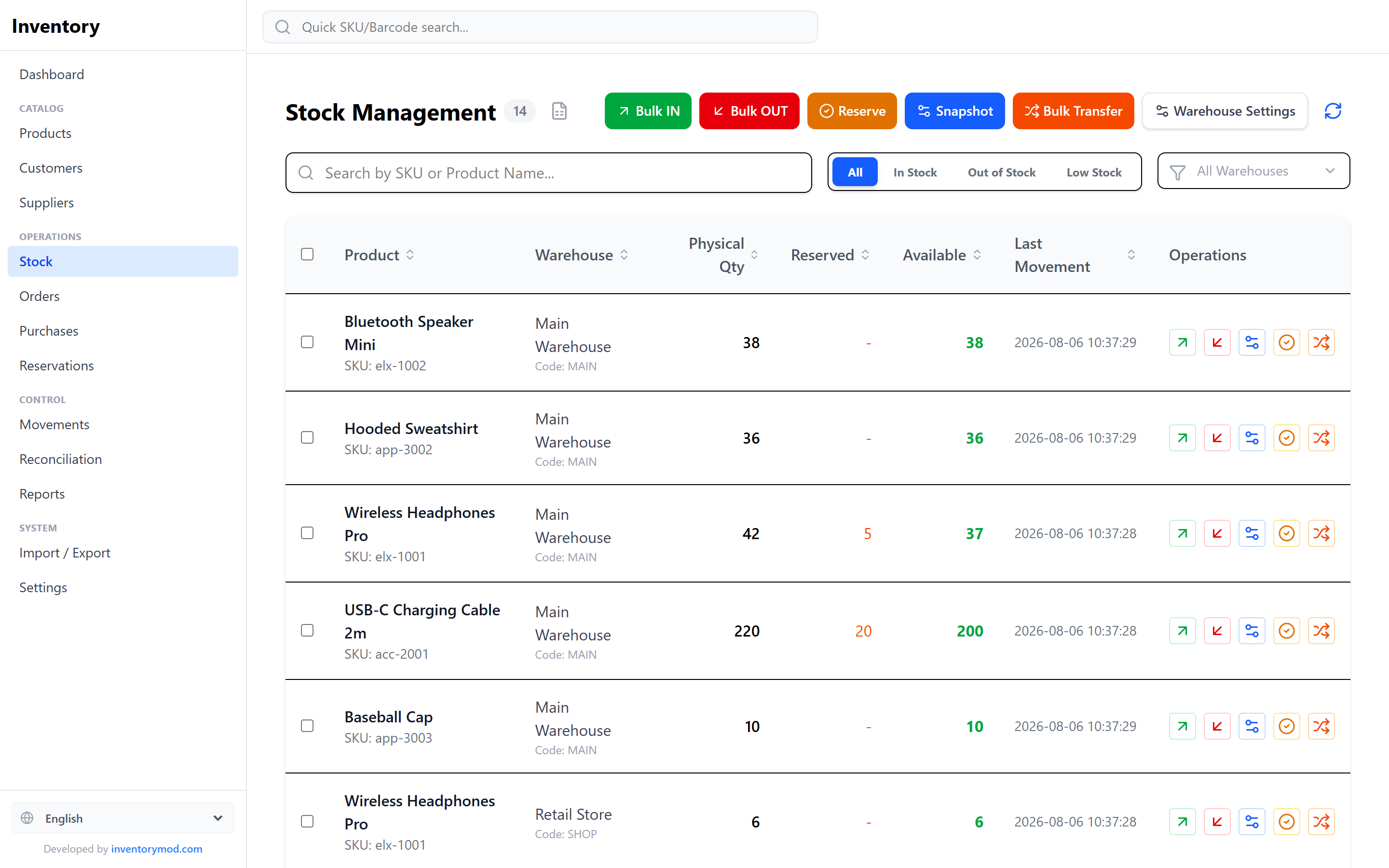
From here you post the core stock operations, individually or in bulk (you can even paste rows from Excel — SKU, Qty, Warehouse, Comment):
Add units to a warehouse. Optionally record a purchase price and currency.
Remove units — e.g. a sale or usage that isn't tied to an order.
Set the exact physical quantity. The app calculates the +/− difference for you.
Move units from a source warehouse to a target warehouse in one step.
Hold stock for an order so it can't be sold twice.
Select several lines to run mass actions: adjust selected, reserve selected, or set quantity to zero. You can also export the current stock view and open Warehouse Settings straight from the toolbar. Whether stock can go negative is controlled by a policy in Settings (see below).
9. Stock Movements
Every change to stock is written to an immutable Movements ledger — your complete audit trail. Each row records the product, warehouse, quantity change (Delta), the resulting balance (After), the document it belongs to, the date/time, and the movement type:
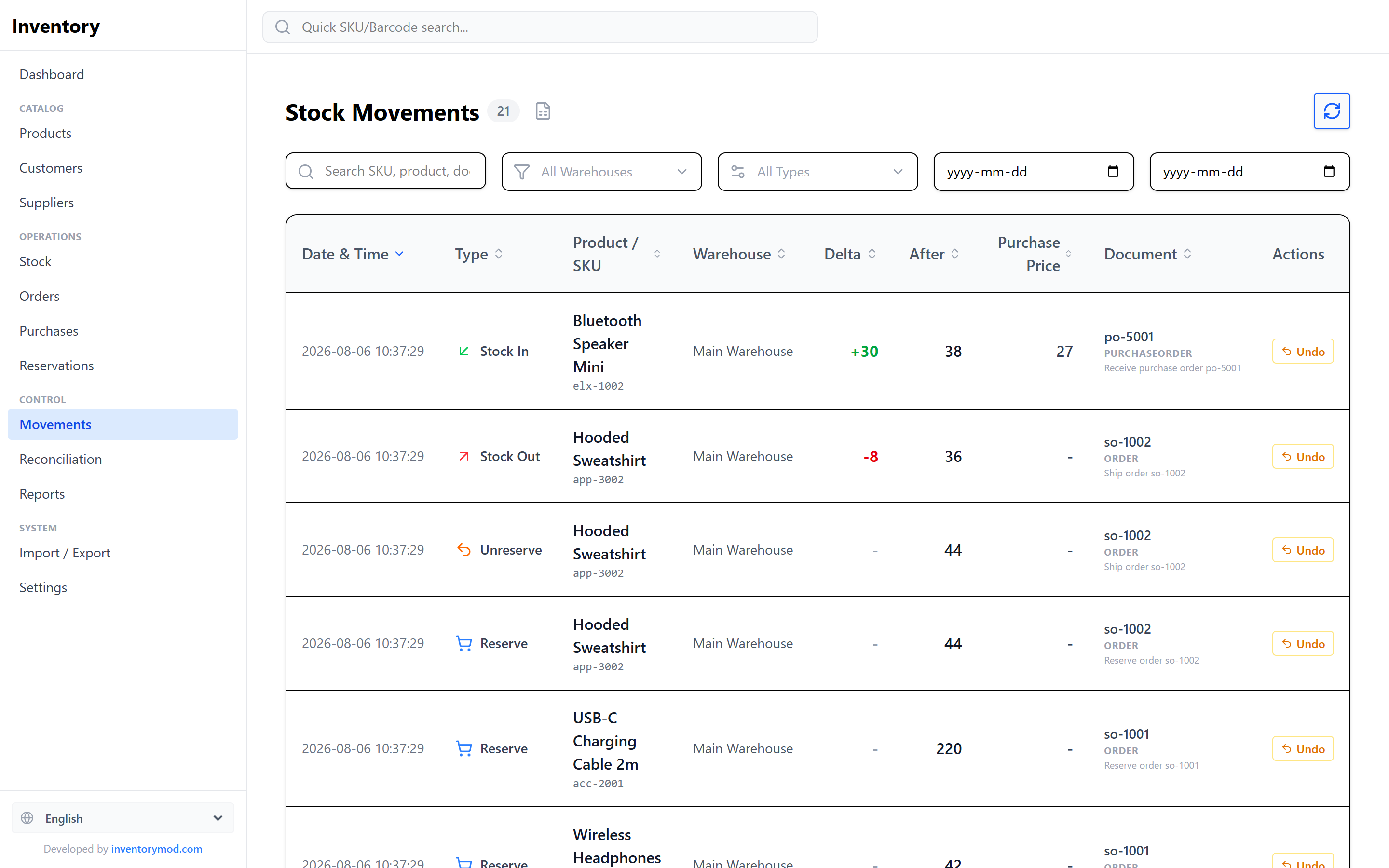
Stock In · Stock Out · Adjustment · Transfer In · Transfer Out · Reserve · Unreserve · Sale From Reservation · Return In · Write Off
Search by SKU, product, or document and filter by type. Made a mistake? A movement can be undone within 15 minutes, which creates a matching reversal entry so history stays accurate. Transfers, assemblies and disassemblies are undone as a whole — both sides at once; transfer rows show the other warehouse (“→ Retail store”). Order and purchase movements are reversed through the document itself.
10. Reservations
Reservations let you set aside stock for a customer before it ships, so the same units are never promised twice. Reserved quantity lowers a product's Available figure while keeping its Physical count unchanged.
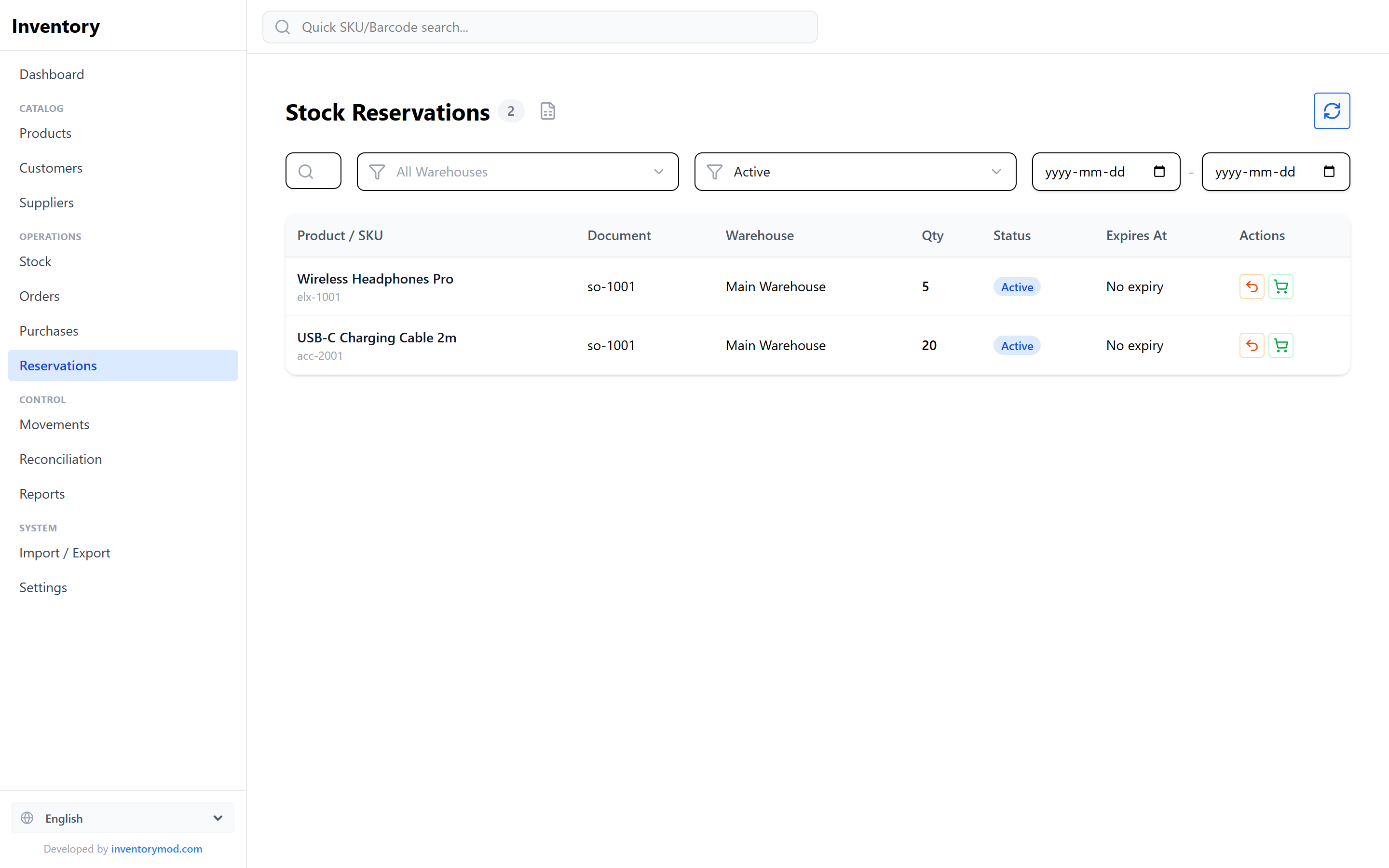
The Reservations page lists every hold with its status — Active, Released, Consumed, or Expired — and an optional expiry date. For an active reservation you can:
- Release — return the units to available stock (e.g. the customer cancelled).
- Consume — deduct the units from physical stock (the goods actually left).
- Order reservations are linked to their order: releasing one here makes the order recalculate its status; an order reservation is consumed only by shipping the order.
Whether you can reserve more than is physically in stock is governed by the "Allow Over-Reservation" policy in Settings.
11. Customer Orders
Orders capture what your customers buy and drive stock out of your warehouses in a controlled way. Create an order with an order number, an optional customer, a free-text source (Shopify, Phone, B2B…), and one or more line items — each with a product, warehouse, and quantity.
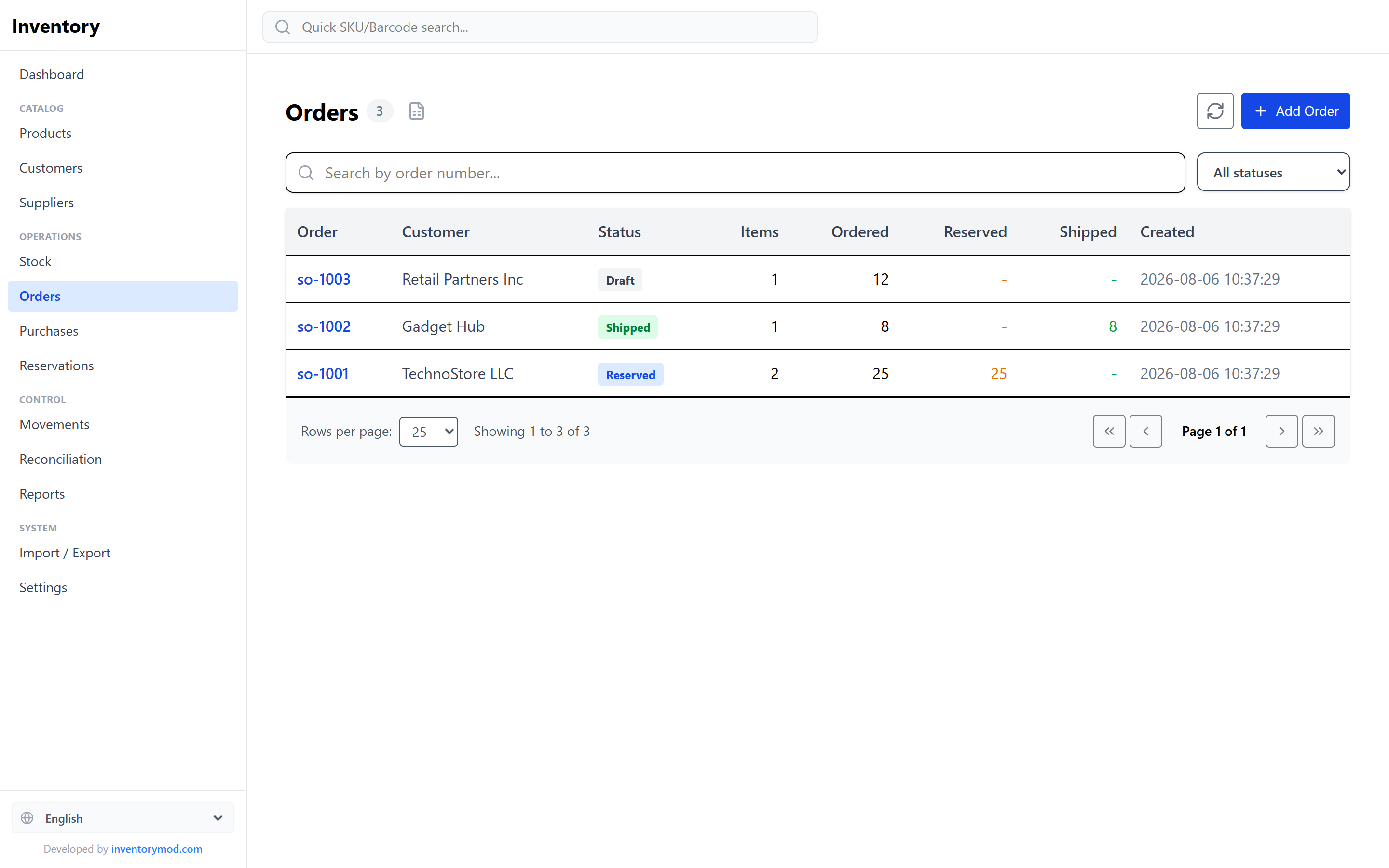
As you build the order, InventoryMod shows live availability per line, warns when you're short, and lists where the product is in stock. An order then flows through clear statuses:
Draft → Partially Reserved → Reserved → Partially Shipped → Shipped (or Cancelled)
- Reserve stock for the order to guarantee availability.
- Ship to convert reservations into an actual stock-out (a "Sale From Reservation" movement).
- Cancel to void the order — any active reservations are automatically released.
Filter orders by status or search by order number.
An order can be edited after creation until it ships: add and remove lines, change quantities, prices and the customer. Excess reservations are released automatically when a quantity goes down. You can add a virtual kit to an order line — its components are reserved and shipped automatically. If a colleague edits the same order at the same time, the app won’t silently overwrite their changes and asks you to reopen the order.
Selling in a store: a dedicated screen
A regular order goes through reservation and shipping. For a customer at the counter these are extra steps, so there's a dedicated Sell screen, optimized for a scanner and one-step sales. Stock is deducted right away, and the sale is saved as an order with the POS source and appears in reports.
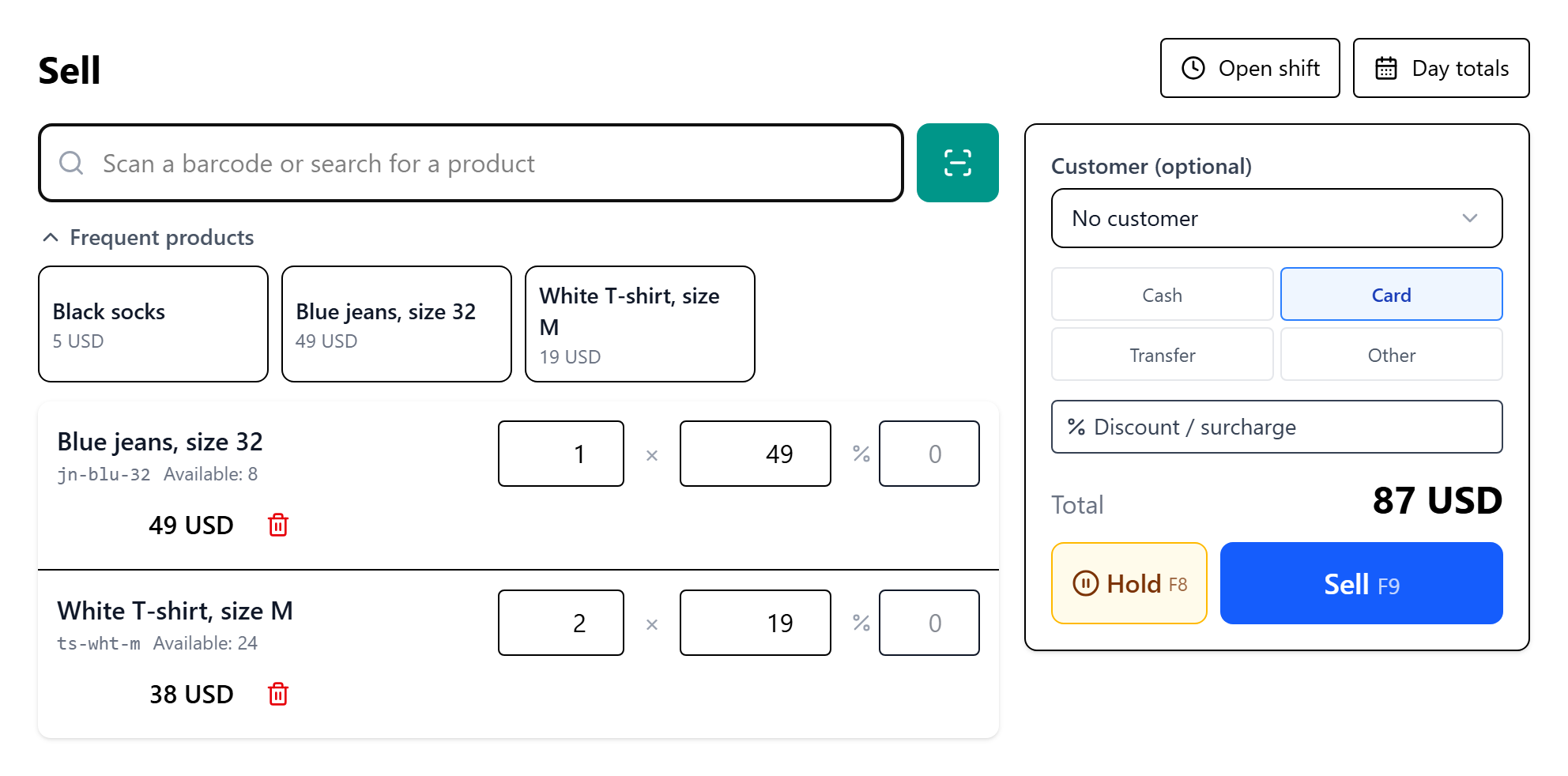
It also has percentage discounts and surcharges, frequent product buttons, held checks, payment methods, a sale receipt, day totals, returns, shifts and cash reconciliation. See the retail inventory software guide for how to use them.
12. Customers
A directory of the people and businesses you sell to. Each customer stores a name, code, contact person, email, phone, address, and comments, and can be linked to orders. Customers can be archived when no longer active.
13. Suppliers
A matching directory for the vendors you buy from — name, code, contact, email, phone, address, and comments. Suppliers are attached to purchase orders so you always know where goods came from.
14. Purchase Orders & Receiving
Purchase Orders (POs) manage restocking from your suppliers. Create a PO with an order number, an optional supplier, an expected date, and line items — each with a product, quantity, and optional purchase price & currency.
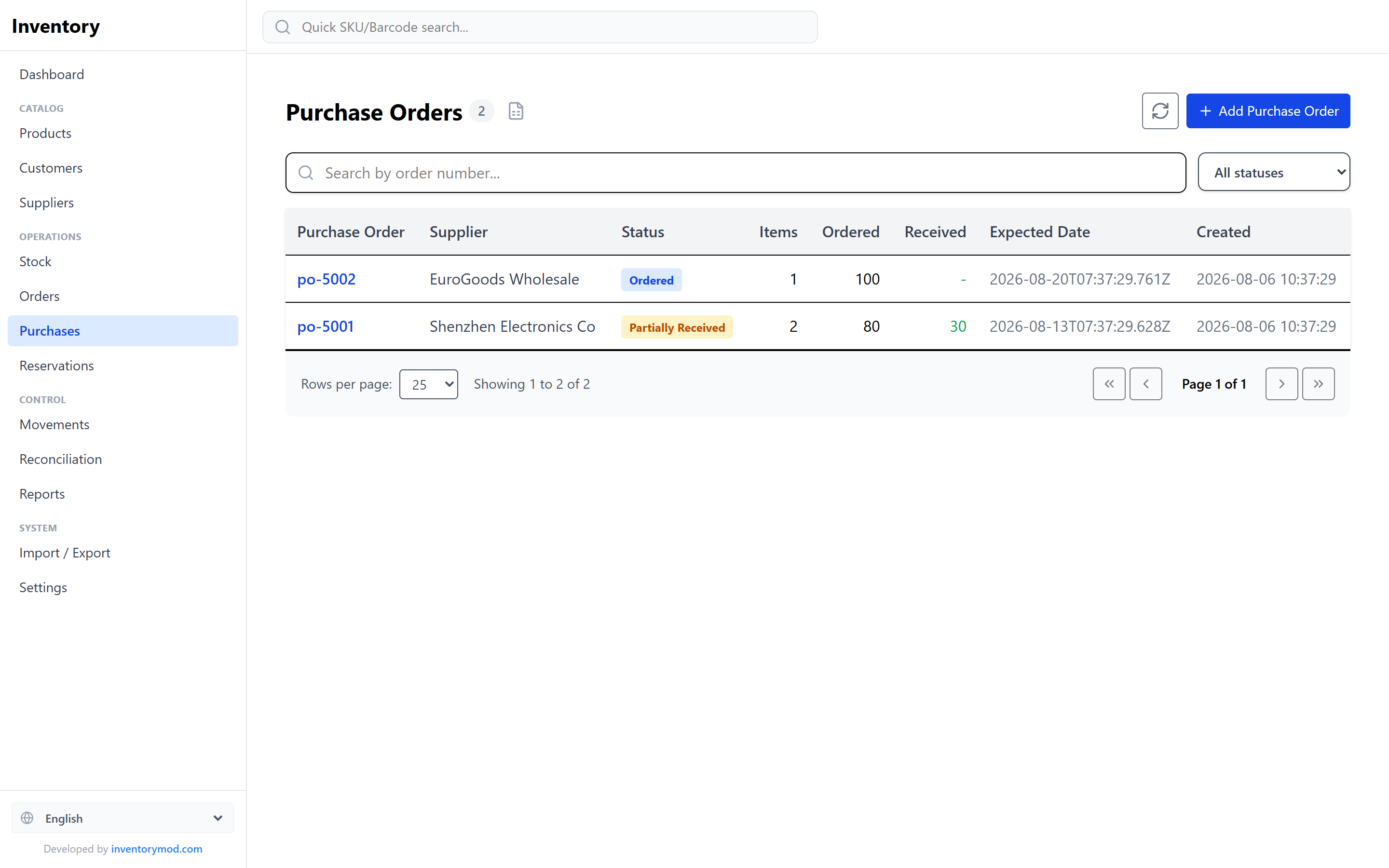
A PO moves through its own lifecycle:
Draft → Ordered → Partially Received → Received (or Cancelled)
When goods arrive, use Receive: pick a target warehouse and enter the quantity received per line (you can receive partially, and the "Remaining" column tracks what's still outstanding). Receiving automatically creates the corresponding Stock In movements — no double entry. The Reports page shows overall receiving progress.
A purchase order can be edited until it is fully received: change the supplier, expected date, prices, or add lines. A line quantity cannot go below what has already been received.
15. Currencies
Work in multiple currencies. Define each currency with a name and an exchange rate relative to your default currency (the default always has a rate of 1). Prices and purchase costs can be stored in any defined currency, and valuations on the dashboard and reports use these rates to convert everything to your base currency.
16. Stock Count (Reconciliation)
A stock count compares your physical count with the stock in the system. Upload a CSV or Excel file with SKU and Qty columns — column names can be in English or Russian. The Warehouse column is optional: you can pick the warehouse on the page.
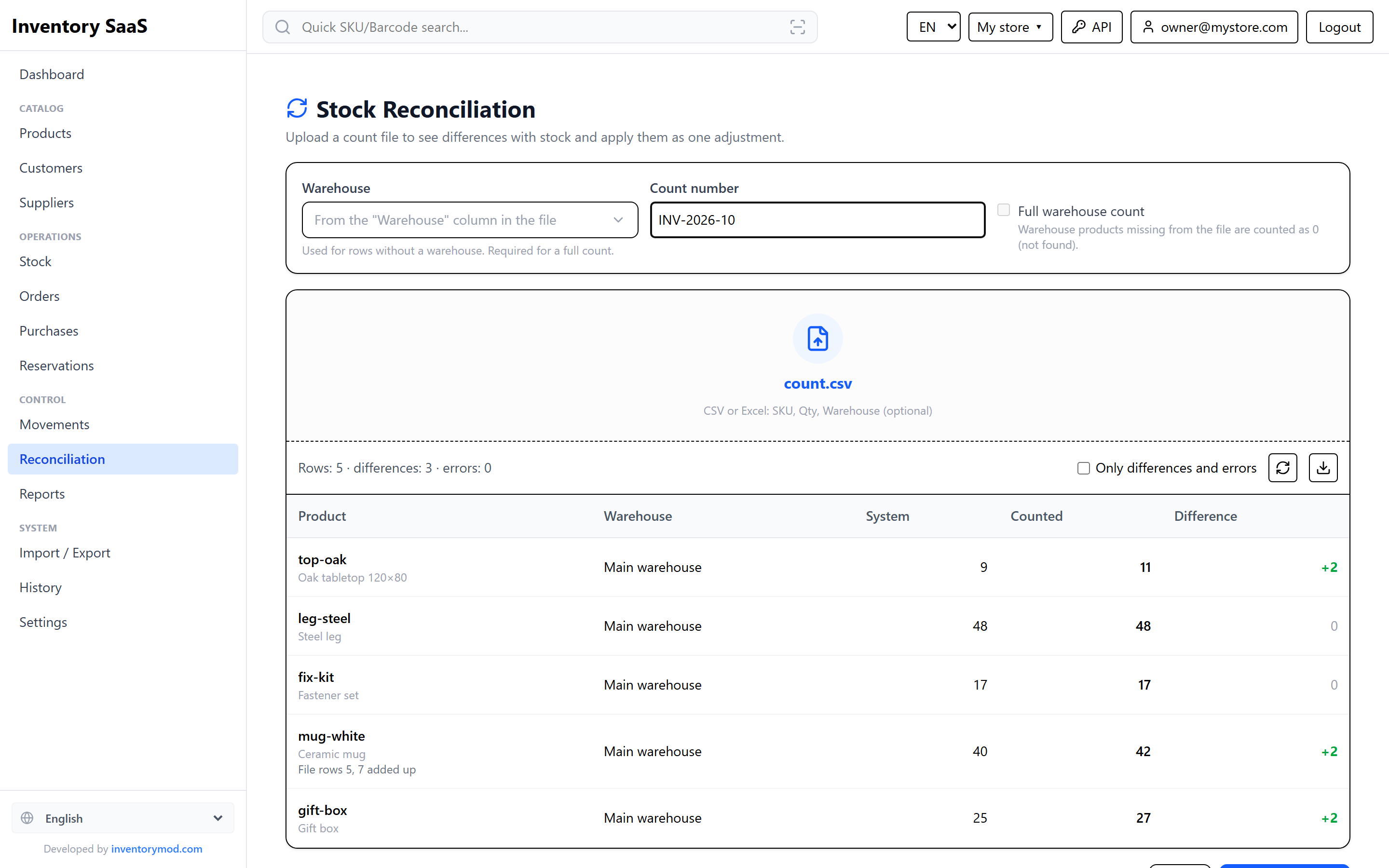
- If a product was counted in two places (two file rows), the quantities are added together.
- Quantities may use a decimal comma (“12,5”); an empty cell, text or a negative number is a row error, not a stock reset.
- Full warehouse count: warehouse products missing from the file are counted as 0 and listed separately before you apply.
- A “below reserved” flag warns when the counted quantity is less than what is reserved for orders.
- Apply posts all differences as a single adjustment with the count number. If a product’s stock changed after the file was uploaded (e.g. a sale went through), that row is not applied — the app asks you to recount.
- The result can be exported to CSV.
17. Reports
Reports turn your movement history into money. Based on recorded purchase costs and sale prices, the Reports page shows:
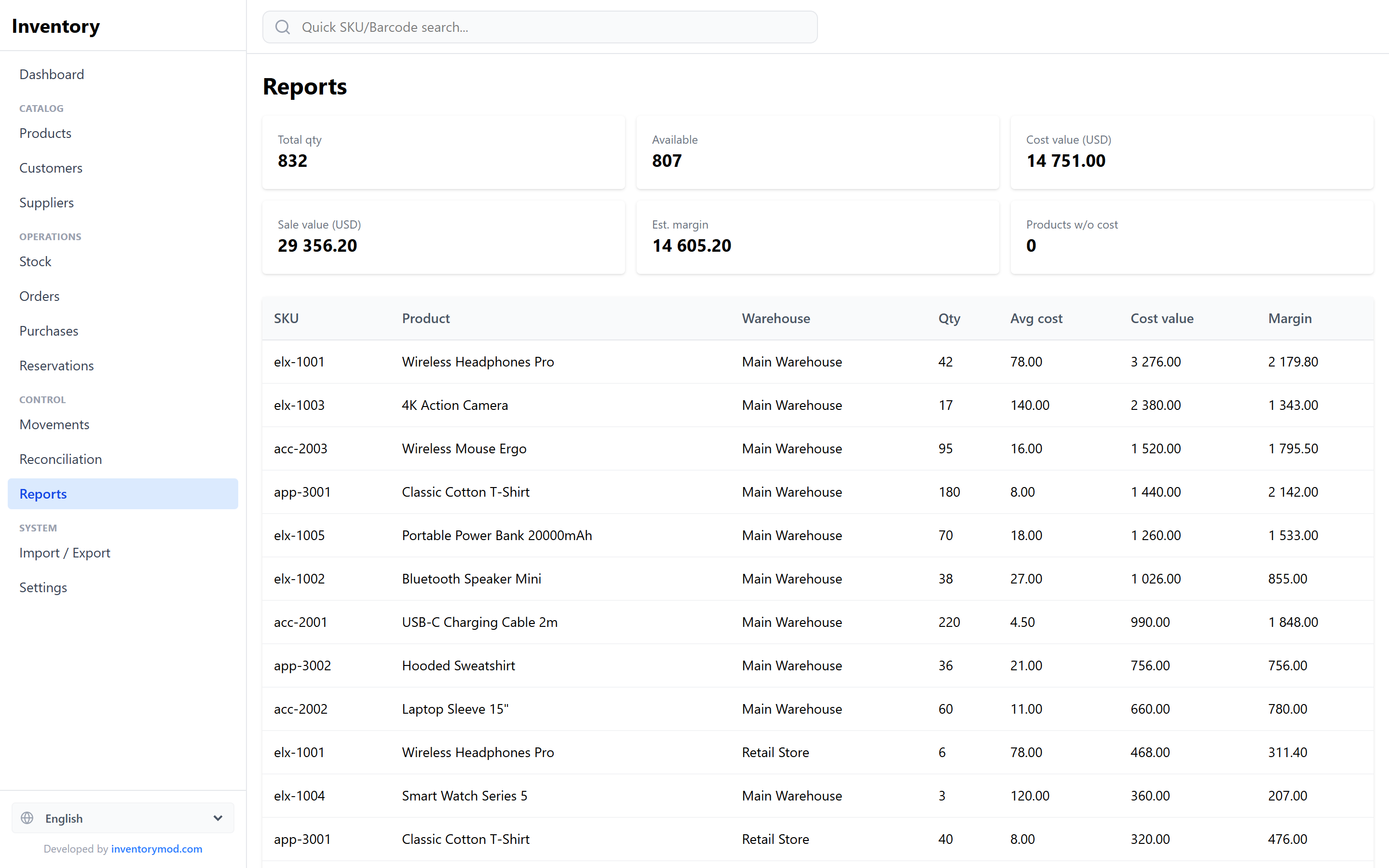
- Cost Report — stock cost value, sale value, and estimated margin, using either average cost or last cost. Items without a recorded purchase cost are listed separately so you can fill the gaps.
- Purchase Summary — an overview of purchase orders and their receiving progress.
Reports are split into tabs: Inventory (stock value, low stock, dead stock, stock aging, turnover, ABC analysis), Sales (revenue, margin, top products, customers and sources, comparison with the previous period), Purchasing (spend by supplier by receipt date, open purchase orders) and Movements (stock in and out by day, write-offs). A report can be built for a single warehouse. Amounts in other currencies are converted to the base currency, and “days” follow the time zone set in Settings.
18. Import / Export
Almost every entity can be imported and exported — products, categories, manufacturers, currencies, customers, suppliers, warehouses, and stock balances. Export any of them to CSV or Excel (XLSX) at any time.
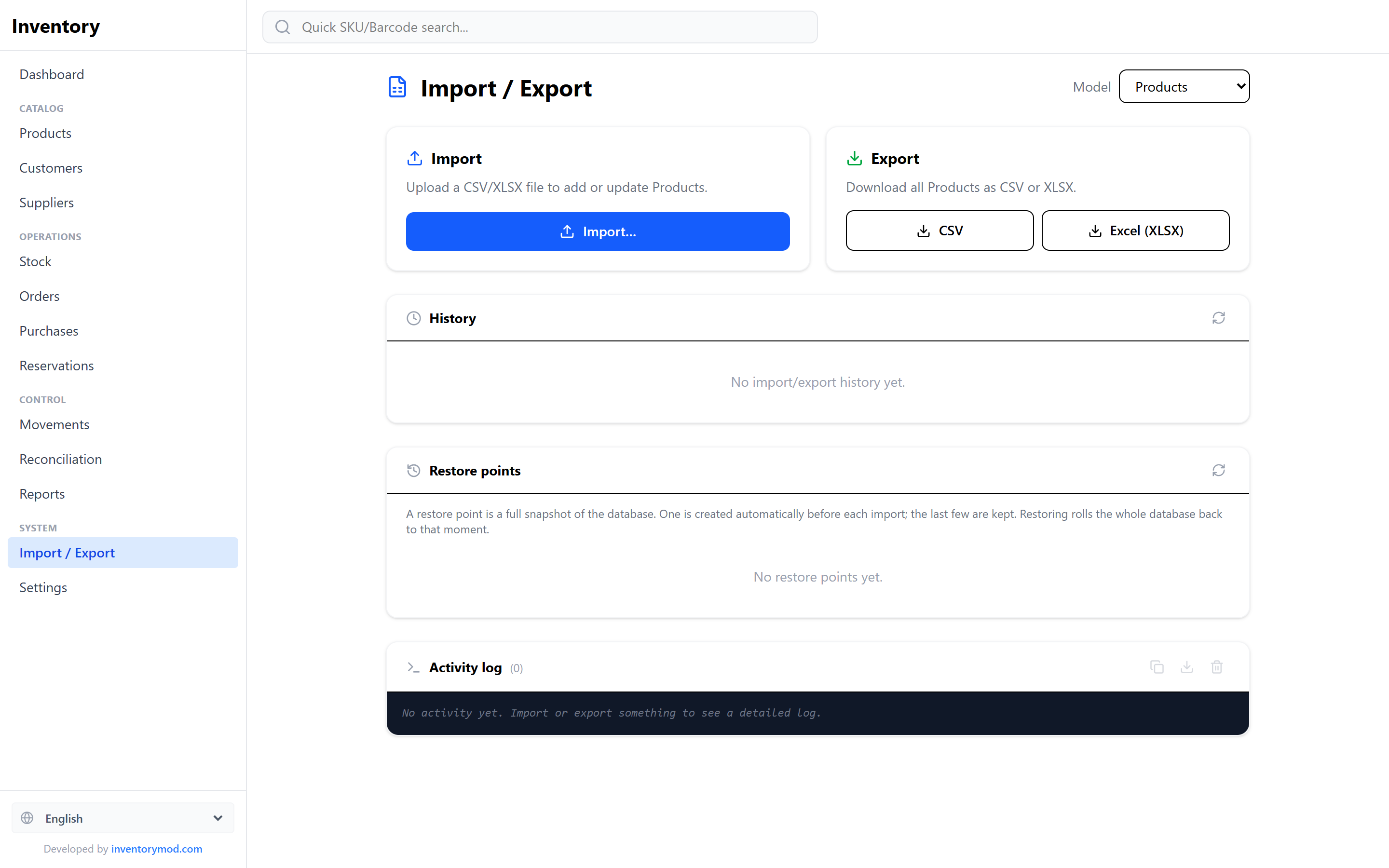
The guided Import Wizard handles messy real-world files:
- Three input sources — upload a file, paste a table (straight from Excel), or load from a URL. Encoding and delimiter are auto-detected, and downloadable templates are provided.
- Smart column mapping — columns are auto-matched to fields, and you can save reusable mapping profiles for feeds you import regularly.
- Import modes — Create only, Update only, or Create & Update, matching records by SKU (or another key). Missing categories, brands, and currencies can be created automatically by name.
- Stock imports — choose the operation (Stock In, Stock Out, or Snapshot) and a target warehouse. Supplier warehouses are locked to Snapshot for clean feed syncing.
- Dry-run & validation — a preview checks references, counts ready / error / duplicate rows, and lets you download the skipped rows so nothing silently fails.
- Undo — an import can be reversed, deleting the records it created, and a full activity log records every batch.
19. Settings & Backup
Settings is where you tailor InventoryMod's behaviour and safeguard your data.
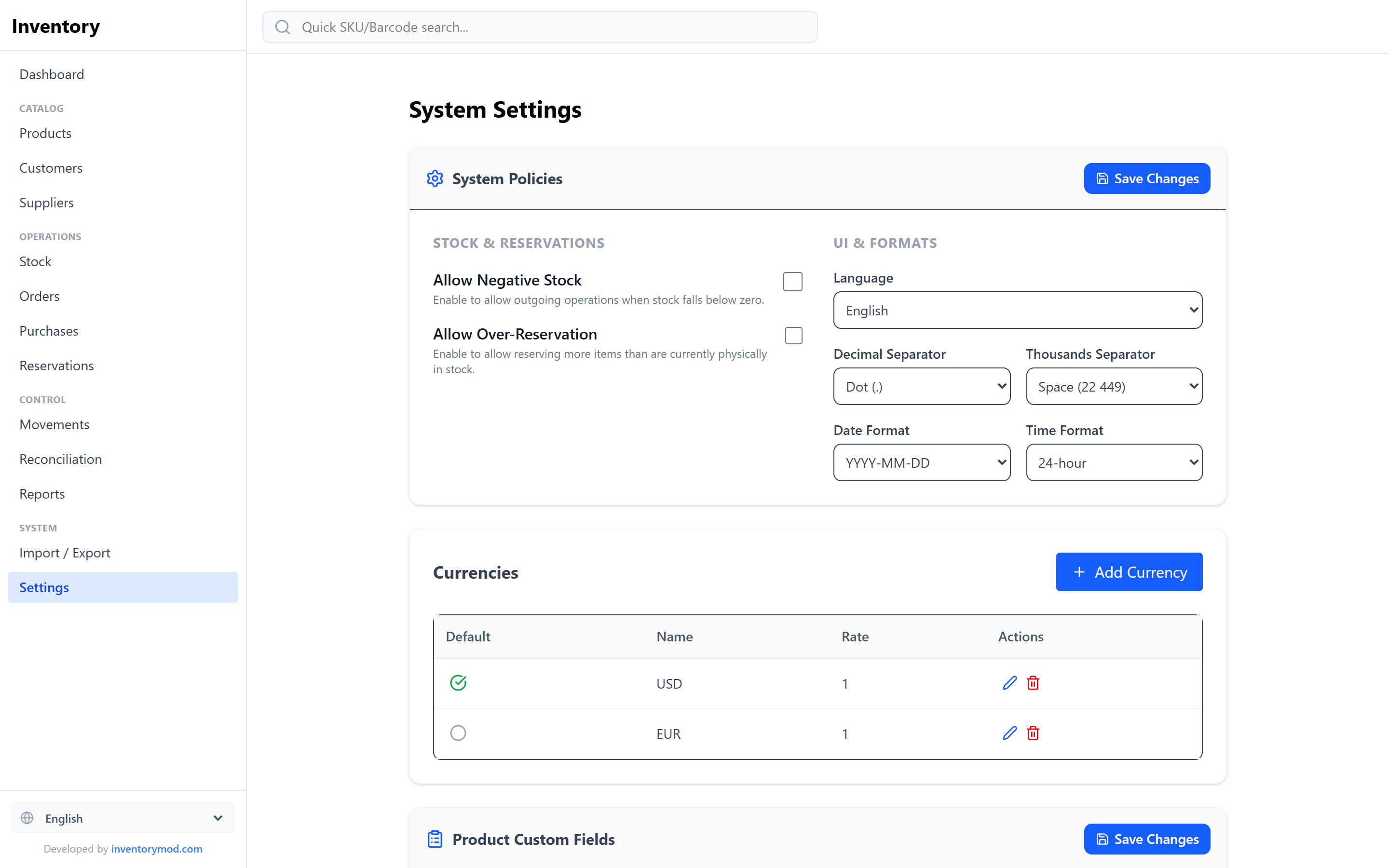
- System policies — Allow Negative Stock (permit outgoing operations when stock would drop below zero) and Allow Over-Reservation (reserve more than is physically in stock).
- UI & formats — language, decimal separator, thousands separator, date format, and 12/24-hour time.
- Product custom fields — define extra fields (text, number, or date) that then appear on every product, e.g. Color or Expiry.
- Mobile bottom navigation — choose which sections get quick-access buttons on phones.
- Additional features — turn kits & assembly and product variants on or off (enabled by default).
- Time zone — reports and date filters use it to determine day boundaries.
- Backup & restore — export your entire database to a single file and restore it later to replace the current data. Before restoring, the app checks that the file really is a backup and saves a restore point of the current data. Backups can also be stored in your Google Drive.
- Restore points — full database snapshots. One is created automatically before every import, and you can create them manually; restoring rolls everything back to that moment.
- Maintenance — clean up orphaned stock rows and run a stock check: compare stock levels with the movement log and reservations and fix any differences.
- Danger zone — permanently wipe all data to start fresh (settings are kept). This is irreversible, so export a backup first.
20. Team Work & Roles
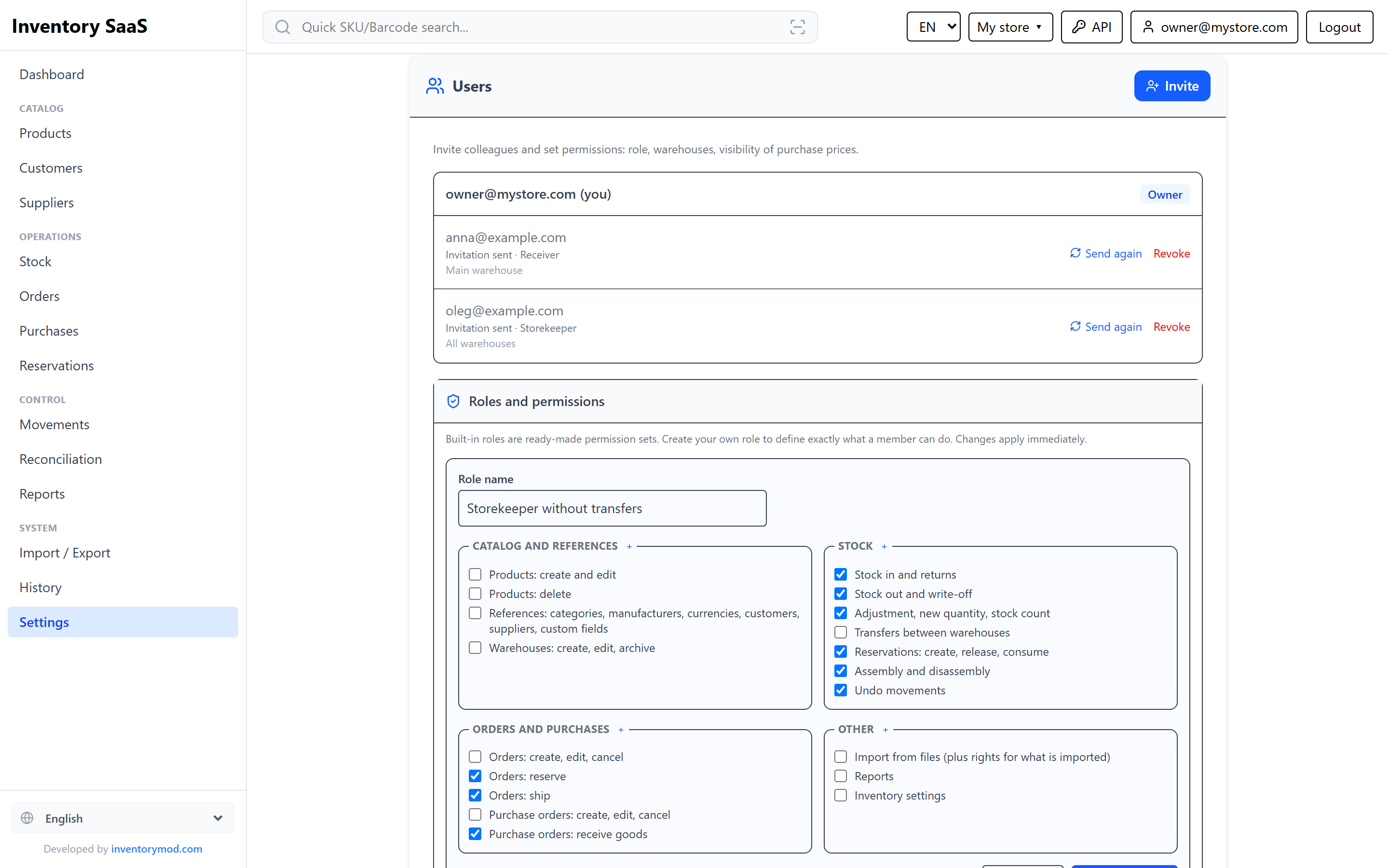
The account owner invites staff in Settings → Users: enter an email, a role and, if needed, warehouses and whether to hide purchase prices. The invitation is sent by email; you can also copy the link and share it yourself. Until it is accepted, an invitation can be resent or revoked.
Built-in roles
Full access, including users, backups and key settings.
Products, reference data, orders and purchasing, stock operations, import and reports.
Stock operations, reserving and shipping orders, receiving purchases. Purchase prices are hidden.
Sees data and reports, changes nothing.
Custom roles
If no built-in role fits, create your own — from scratch or based on a built-in one — and tick the permissions you need: creating and deleting products, reference data, warehouses, stock in, stock out, adjustments, transfers, reservations, assembly, undoing movements, orders, purchasing, import, reports, settings. Role changes apply to all its members immediately. A role assigned to staff cannot be deleted — change their role first.
Access restrictions
- Warehouses — a team member sees and changes only the selected warehouses: their stock, movements, orders and reports.
- Hide purchase prices — cost, purchase prices and margin are neither shown nor editable (always on for warehouse clerks).
- The interface shows only the actions that are allowed; the server checks permissions on every operation.
- Changing a password signs out all previous sessions — handy when access must be revoked urgently.
Multiple accounts
One user can run several accounts (for example, different shops) and be a team member in others. The account is chosen in the top menu, and the last one used opens automatically. Your own accounts can be renamed and deleted; you can leave someone else’s. For integrations, the Web App offers API keys with read or write access; a key acts with its user’s permissions.
21. Frequently Asked Questions
Can my whole team work in it?
Yes, in the Web App. Invite staff in Settings → Users and assign a role — built-in or custom with exactly the permissions you need. Access can be limited to specific warehouses and purchase prices can be hidden.
How do I track assembly and manufacturing?
Define a bill of materials for the product and run Assemble: the components are consumed and the product is received at a cost rolled up from its components. For bundles that aren’t built in advance, use a virtual kit — its components are deducted when the order ships.
How do I manage products with sizes and colors?
Create a model with variants, add Color and Size axes and create the variants with one button. Each variant has its own SKU, barcode, price and stock.
Is InventoryMod really free?
Yes. All three versions — Web, Chrome Extension, and Android — are free to use, with no credit card and no sign-up required to get started.
Are the Web, Chrome, and Android versions different?
Hardly — they share the same engine and the same inventory features, including kits and variants. The Chrome Extension and Android app store data locally on your device, while the Web App stores it on the server and adds team work with roles and an API.
Where is my data stored?
In the offline versions, your data is stored locally in a SQLite database on your device — nothing is sent to a server. Use the built-in backup and restore points to keep it safe.
Can I import my existing product list?
Yes. Use the Import Wizard to upload a CSV or Excel file (or paste from Excel). It auto-maps columns, validates rows, and can create missing categories and brands automatically.
What's the difference between physical and available stock?
Physical stock is what's actually on the shelf. Available stock is physical minus the quantity reserved for orders — so you never promise the same units to two customers.
Can I undo a mistake?
Yes. Stock movements can be undone within 15 minutes, imports can be reversed entirely, and you can roll the whole database back to any restore point.
Ready to organise your inventory?
Start free in seconds — no sign-up, no credit card.