🏪 For stores and points of sale
Retail inventory software for small stores: sell by barcode, keep stock accurate
InventoryMod is free retail inventory software for small stores, coffee shops and other points of sale. Scan a product, press Sell, and stock is deducted automatically. At the end of the day you see revenue by cash and card, and a return takes a few taps. No special hardware is needed: a phone with a camera is enough.
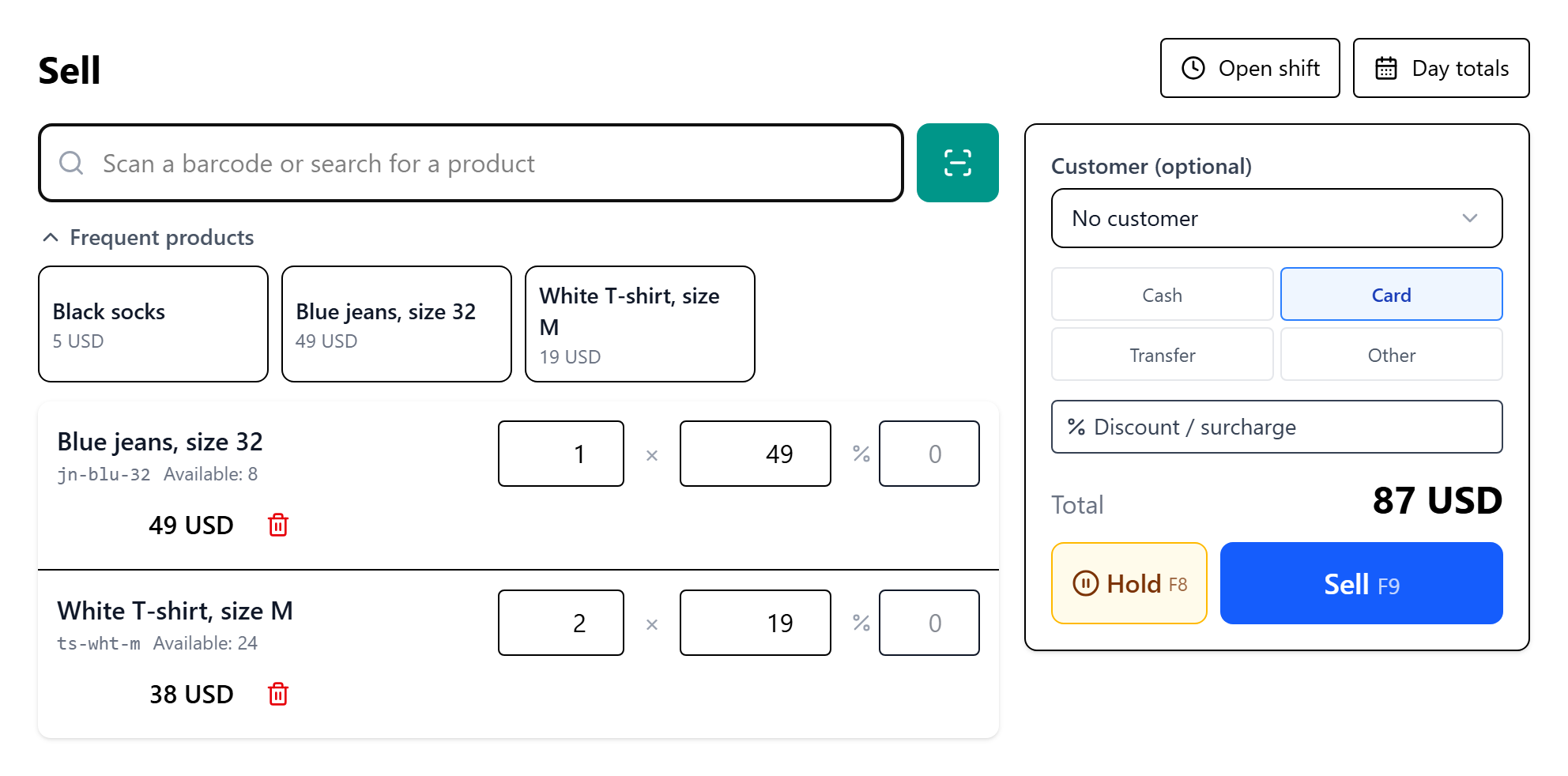
What this retail inventory software does
A warehouse workflow of creating an order, reserving stock and shipping it is too many steps for a customer at the counter. That's why this retail store inventory software has a dedicated Sell screen. Every sale updates your stock, revenue and reports in one step.
Getting started with inventory software for your retail store
- Add products. Manually or by importing from Excel. Set a selling price so you don't have to type it at the counter.
- Receive your stock. Post a stock-in to the warehouse that will be your point of sale.
- Prepare barcodes. Add manufacturer codes to product cards. Products without a code can get printed labels.
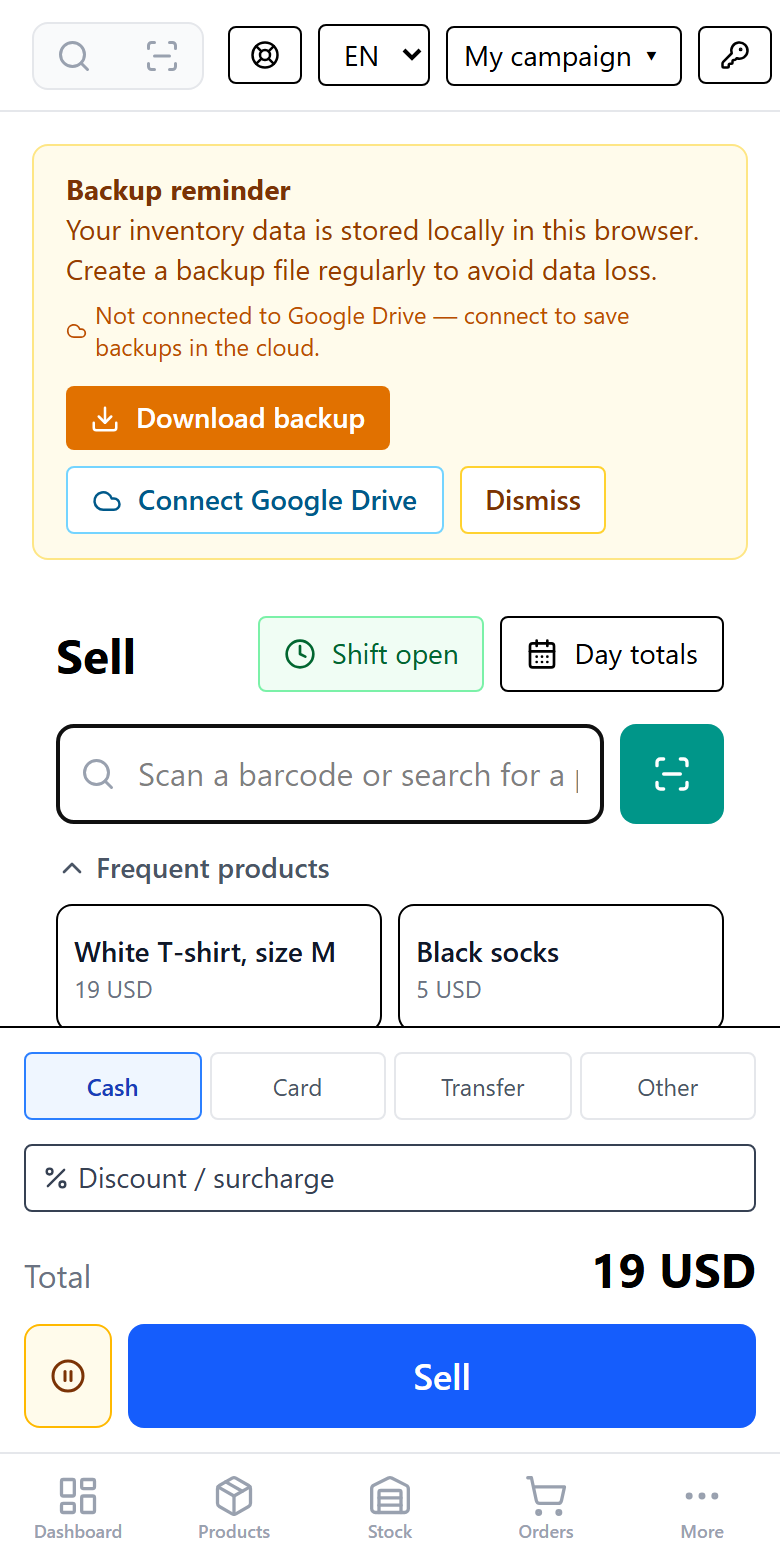
- Open Sell. It's in the menu under Operations. On a phone, tap More.
How to make a sale
- Add products. Scan a barcode or type a name. Scanning the same product again adds one more.
- Change the quantity or price if needed right in the line.
- Choose a payment method. The app remembers it on this device for the next sale.
- Press Sell or F9 on a computer.
A customer is optional. If you have several points of sale, pick yours in the screen header: this is also remembered on the device.
Percentage discounts and surcharges
To discount one product, enter a value in the "%" field of its line. For the whole check, press "Discount / surcharge" and choose 5, 10, 15, 20% or type your own percentage.
A surcharge is for businesses that add a percentage to the bill: a restaurant service charge or a music fee. Press Add and enter a name and a percentage. You can save it as a button for all staff and add it to every sale automatically. Saving buttons requires the permission to edit settings.
The line discount is applied first, then the check discount, and the surcharge is calculated on the already discounted amount. For example: 200 − 10% = 180, then + 10% = 198. The receipt shows each of these as a separate row.
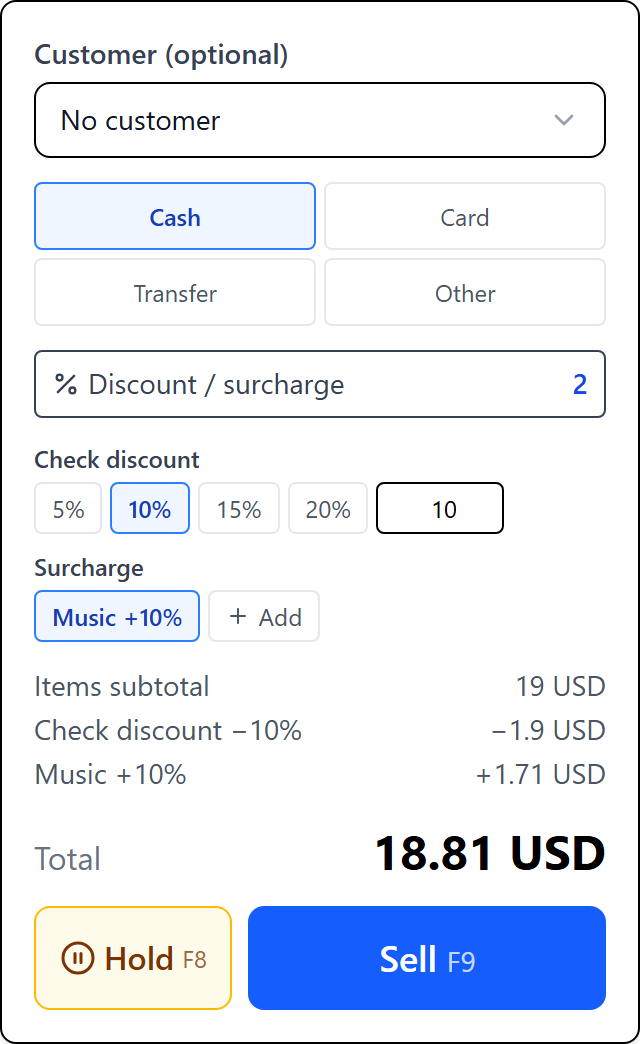
The surcharge counts towards product revenue and margin and is not shown as a separate row in reports. On a return, the customer gets back the price including the discount and surcharge.
Products without barcodes: frequent products
Below the search field there are product buttons: first the ones sold most often at this point over the last 60 days, then the rest of the catalog. There's nothing to set up. Tap a button and the product is in the cart. If you don't need them, collapse the buttons: this is remembered on the device.

Held checks
Customer forgot their wallet or went to grab one more item while a queue builds up? Press Hold or F8. The cart is cleared for the next customer. To come back, tap the check above the cart. If the cart isn't empty, it becomes a held check automatically, so nothing is lost.
The pencil icon lets you name a check, for example "Table 3". Products, prices, discounts, customer and payment method are all kept.

How to print a receipt
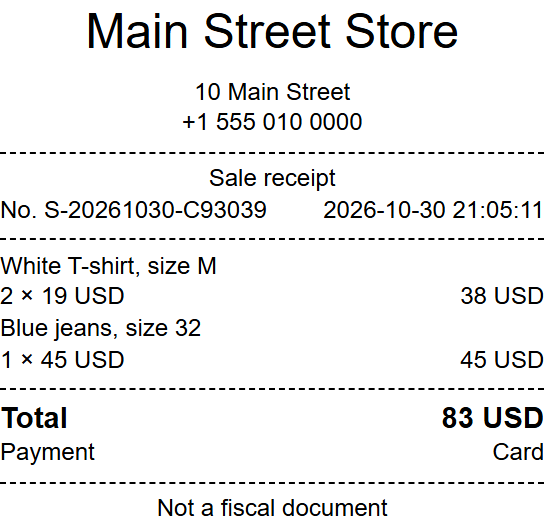
Press Receipt after a sale or the printer icon in day totals, then choose a printer in the regular print dialog. The receipt shows the name, address and contacts of the point of sale. They come from the warehouse card, so fill them in beforehand.
How to review day totals
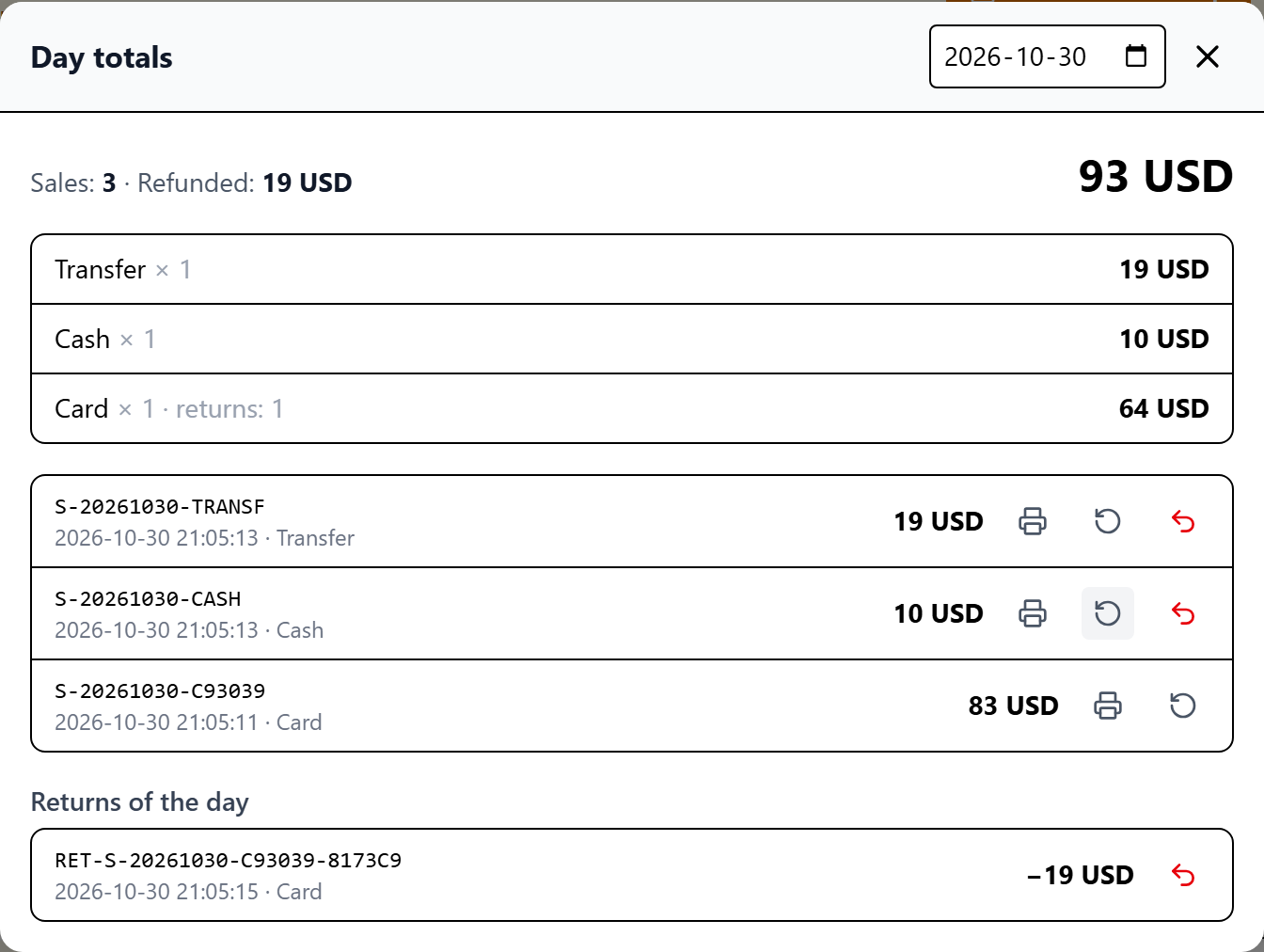
Press Day totals. You'll see the net amount for the day, the amount per payment method and a list of all sales. Undone sales aren't counted, and returns are subtracted on the day you refunded the money. Choose a date to look at past days.
Shifts and cash reconciliation
Shifts are optional: without one, sales work as usual. A shift helps you compare the cash drawer with your records at the end of the day.
- Open a shift. Press Open shift and enter the cash in the drawer at the start.
- Record cash in and cash out. For example, when you take money for a purchase or add change.
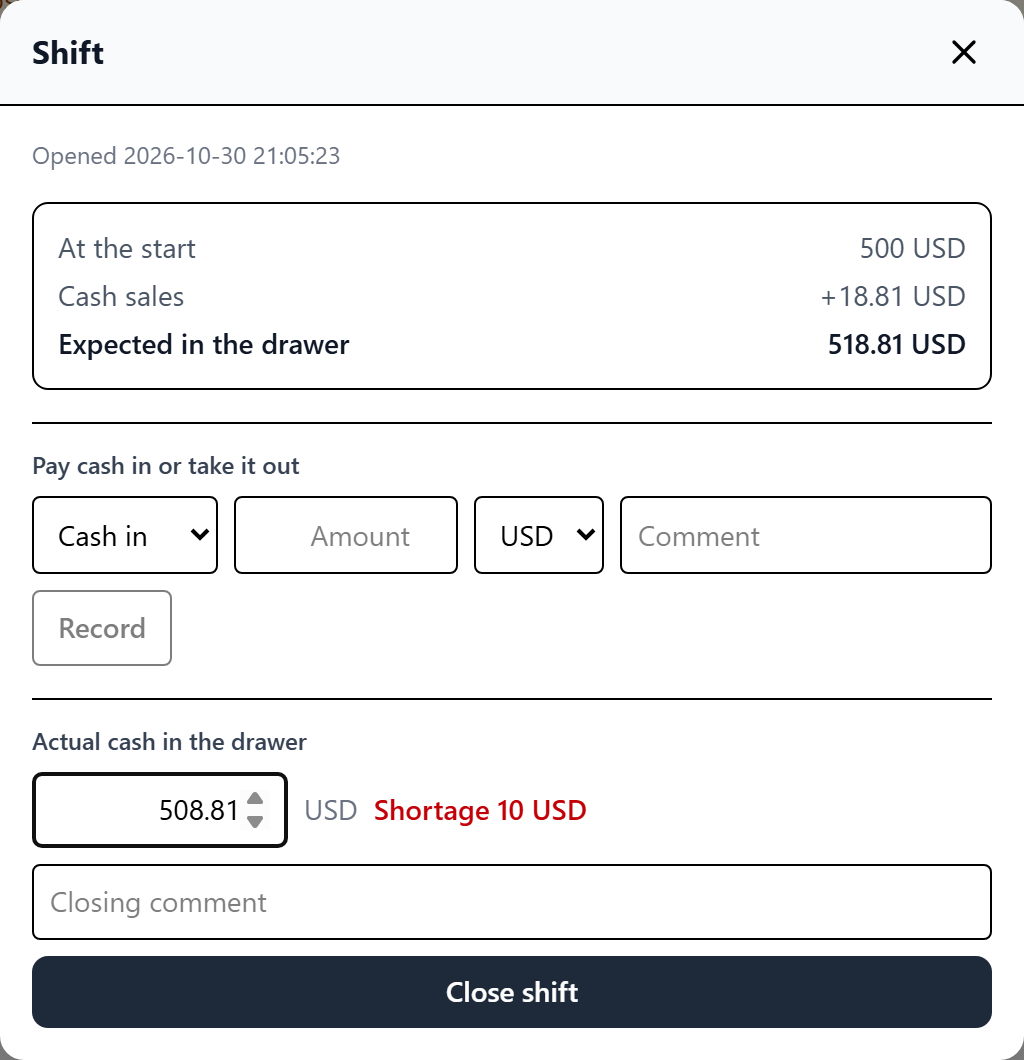
- Count the cash and close the shift. The app compares your count with the expected amount and shows any shortage or surplus. The result stays in the shift history.
Expected cash is the opening amount plus cash sales and cash in, minus cash refunds and cash out. Card and transfer are shown separately, so you can check them against your terminal. Each point of sale has its own shift.
A cash sale or return from a closed shift can't be undone, because that shift has already been reconciled. Process a new return instead: it goes to the current shift.
How to process a return
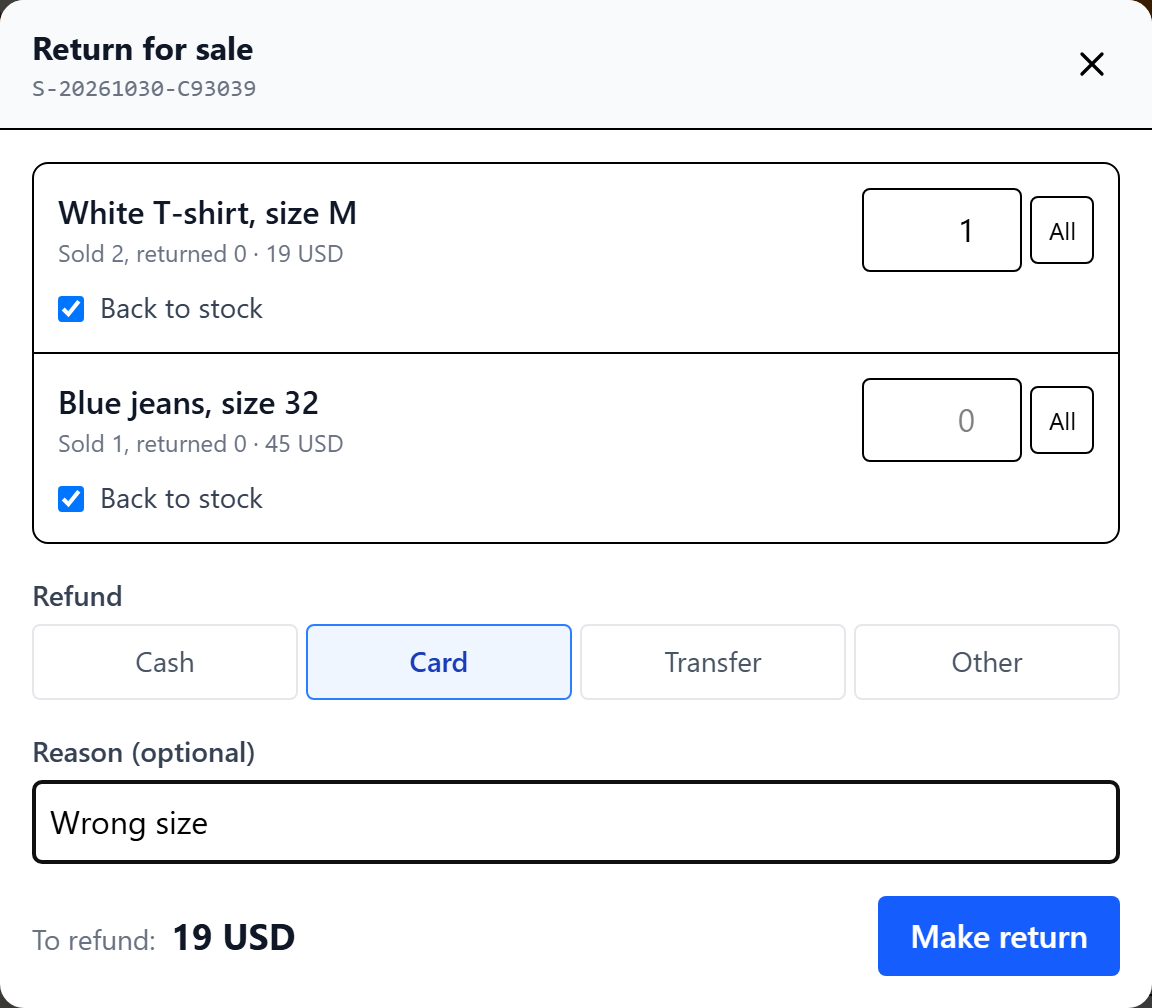
- Open Day totals, choose the sale date and press the return icon in its row. You can also use the Return button on the order card.
- Enter how many items came back. The All button fills in everything that can still be returned.
- Keep "Back to stock" checked if the product can be sold again. Uncheck it if it's defective.
- Choose how the money was refunded and press "Make return".
In reports, revenue drops on the day of the return, so last month's figures don't change retroactively. A defective item reduces revenue, but its cost stays in expenses.
Mistakes and products missing from stock
A sale was made by mistake
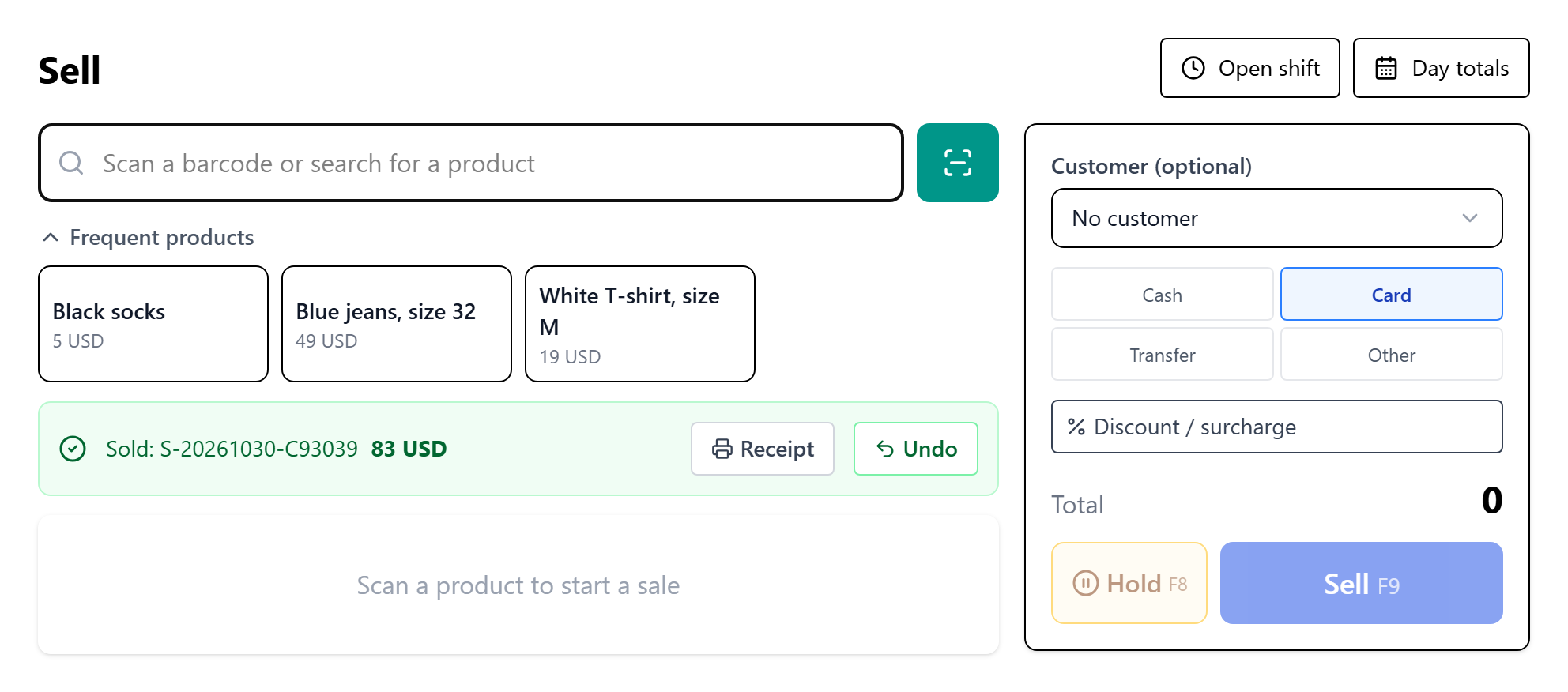
Within 15 minutes, press Undo. Stock comes back and the sale leaves revenue. After that, process a return. If the sale already has a return, undo the return first or make another return for the rest. A return can also be undone within 15 minutes.
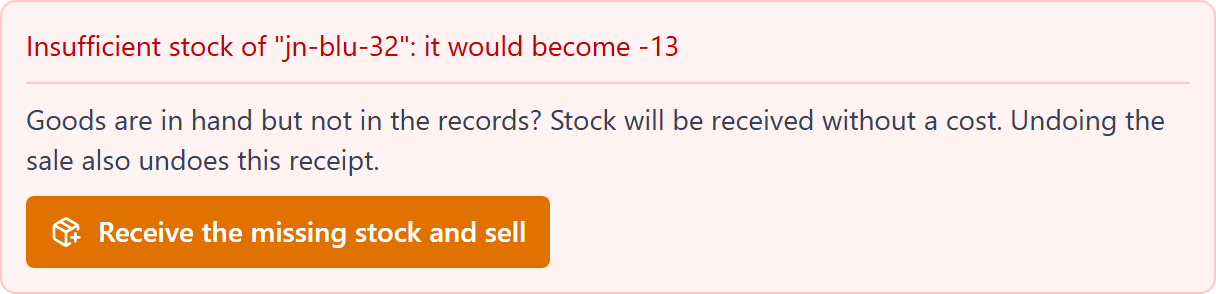
The product is in hand but not in stock
The app shows the shortage and offers to receive the missing quantity and sell. The stock-in has no cost, so margin for this product will be incomplete. The button is visible to staff with the stock-in permission.
The Sell button is disabled
Check that every line has a price and quantity, that a regular warehouse exists, and that your role can edit and ship orders.
This is not a cash register: what to know
Shifts here are for your own records and don't replace a fiscal shift on a certified register. A single sale can't yet be split across several payment methods: mark such a purchase as Other, but note that its cash part won't be included in reconciliation and will show up as a surplus.
FAQ
How much does this retail inventory software cost?
Inventory management on InventoryMod is free. Open the web app and sign up.
What hardware do I need?
A phone with a camera or a computer is enough. On a computer, a USB scanner is convenient: the input field is already focused, and a code followed by Enter adds the product right away. For receipts, any printer visible in the regular print dialog will do.
Can I add a service charge or music fee to the bill?
Yes. It's a percentage surcharge: apply it to one sale or add it to every sale automatically.
Can I run several points of sale?
Yes. Each point is set up as a warehouse. You can limit an employee to their own warehouses, and they'll only see sales and totals for those.
Do sales appear in reports?
Yes. A sale is saved as an order with the POS source, so it appears in reports and under Orders, and its payment is shown on the card.
Can a product be returned a month later?
Yes, there's no time limit on returns. Choose the sale date in day totals or find the sale under Orders.
Can a product be returned at another point of sale?
The product goes back to the warehouse it was sold from. If it was taken back at another point, make a stock transfer after the return.